Quick Answer
When Armoury Crate will not install or update, the cause is usually leftover files from a previous installation, an outdated Windows build, an installer running without administrator rights, or antivirus software interfering, and the fix that resolves most cases is to remove the old installation completely with the official uninstall tool, restart, and then run a fresh installer as administrator. Work through the steps below in order, because each one is quicker than the next and most installs succeed long before the advanced steps.
Before You Start: Check the Basics
Before troubleshooting anything else, confirm your system actually meets what the installer expects:
- Windows 10 version 2004 (build 19041) or later, or any 64-bit build of Windows 11
- An administrator account, because Armoury Crate installs drivers and system services
- A working internet connection, because the installer downloads components as it goes
- A few gigabytes of free disk space, since a nearly full system drive can stop the installation midway without a clear error
Press Win + R, type winver, and check your build first, because installing on an unsupported Windows version fails no matter what else you try.
Fix 1: Update Windows First
Outdated Windows builds miss runtime components and service fixes that the installer depends on, so open Settings, then Windows Update, and install everything available, restarting and checking again until no updates remain. This sounds basic, but an installation that fails on an old build often succeeds immediately after the system is current, and it takes less time than any other fix on this page.
Fix 2: Remove the Previous Installation Completely
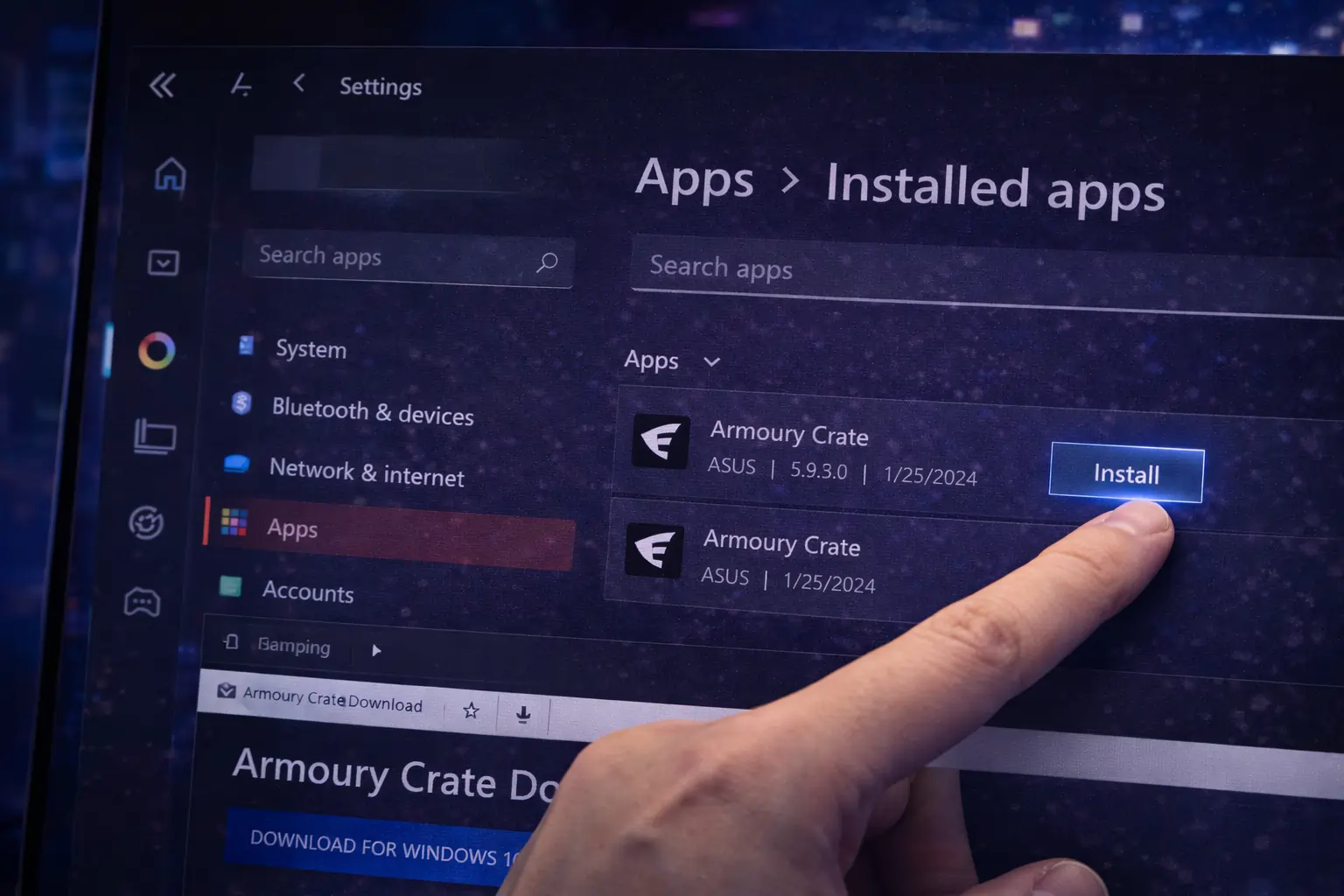
Remnants of an older Armoury Crate installation are the most common reason a new install or update fails, because the installer detects the old files and stops, or installs over a broken base and inherits its problems. Download the official Armoury Crate Uninstall Tool, run it as administrator, and let it remove the app, the ASUS services, and the registry leftovers in one pass. Restart when it finishes, then delete any ASUS folders still sitting in:
- C:\Program Files\ASUS
- %LocalAppData%\ASUS
- %ProgramData%\ASUS
Our step-by-step guide to uninstalling Armoury Crate cleanly covers this removal in full if you want the details before you start. After the restart, run the fresh installer as administrator.
Fix 3: Run the Installer as Administrator
Armoury Crate installs drivers and system services, and Windows blocks those actions for standard accounts, which produces generic errors such as 1603 or a rollback near the end of setup. Save the installer to your desktop, right-click it, and choose Run as administrator, then approve the UAC prompt and let the installation finish without interruption. Also close any other ASUS software before starting, because a running Armoury Crate instance can lock files the installer needs to replace.
Fix 4: Restart the Windows Installer Service
If setup fails instantly or reports that a service cannot be found, the Windows Installer service itself may be stuck. Open Command Prompt as administrator and run net stop msiserver followed by net start msiserver to restart it, then try the installation again. While you are there, restarting the Windows Update service with net stop wuauserv and net start wuauserv can also clear update related failures, because Armoury Crate updates lean on the same machinery.
Fix 5: Pause Your Antivirus During the Install
Security software sometimes flags Armoury Crate because it installs drivers and hardware monitoring components, and a classic symptom is the installer freezing near the very end. Temporarily pause your antivirus, including real time protection in Windows Security, run the installer as administrator, and turn protection back on as soon as the installation completes. If the conflict keeps happening, add the C:\Program Files\ASUS folder and %ProgramData%\ASUS to your antivirus exclusions instead of leaving protection off.
Fix 6: If the Download Itself Fails
Update failures that mention the network, and installers that stall while downloading components, are usually connection or DNS problems rather than installation problems. Test your connection first, and if ASUS servers time out, open your network adapter properties and set the DNS servers to 8.8.8.8 and 1.1.1.1, which routes around most ISP level blocks. Then grab a fresh copy of the installer from our Armoury Crate download page and run it again, because a partially downloaded installer will never complete no matter how many times you retry it.
Fix 7: Install in Safe Mode
When something on your system keeps interfering and you cannot find it, Safe Mode with Networking strips Windows down to essentials so the install can proceed. Open Settings, then System, then Recovery, and use Advanced startup to restart into the options menu, then choose Troubleshoot, Advanced options, Startup Settings, and press 5 for Safe Mode with Networking. Run the installer as administrator there, then restart normally. Some hardware will not be detected while you are in Safe Mode, but detection catches up on the first normal boot.
Fix 8: Install the Components for Your Model Manually
As a last resort, install the pieces individually from your own device’s ASUS support page, because model specific packages sometimes succeed where the universal installer fails. On the ASUS support site, enter your exact model, open Drivers and Tools, and install in this order: ASUS System Control Interface first, then the ASUS Framework Service, then the Lighting Service, and the main Armoury Crate application last, restarting between each one. The order matters because the main app cannot finish setting up until the services it depends on already exist.
If Installation Works but Updates Fail
Update failures have two quick fixes of their own. First, close Armoury Crate completely, delete the contents of the Update folder inside %ProgramData%\ASUS\ARMOURY CRATE, and then check for updates again from Settings, then About inside the app, because a corrupted cached update is a frequent cause. Second, if that does not help, simply install the newest version over your current one, since the installer updates the existing installation in place and replaces whatever the updater was choking on.
How to Confirm the Install Worked
Run through this quick checklist after setup finishes:
- Armoury Crate opens and the main interface loads fully.
- Your device appears on the Device tab with its CPU, GPU, fans, and lighting visible.
- In services.msc, the Armoury Crate Service, ASUS System Control Interface V3, and LightingService all show as running.
If the app opens but hangs on a loading screen instead, that is a different problem with its own fixes, covered in the FAQ below.
FAQs
Why does my Armoury Crate installation keep failing?
The most common cause is leftover files and services from a previous installation blocking the new one. Remove everything with the official uninstall tool, restart, and install fresh as administrator before trying anything more advanced.
Can I install Armoury Crate on Windows 10?
Yes, as long as it is version 2004 (build 19041) or newer in 64-bit. Check with Win + R and winver, and update Windows first if your build is older.
Do I need to uninstall the old version before updating?
Normally no, because the installer updates the existing installation in place. A clean uninstall first is only worth it when updates fail repeatedly, which usually means the current installation is already damaged.
The installer gets stuck near the end. What should I do?
That pattern usually means antivirus interference. Close the installer, pause your antivirus temporarily, restart the PC, and run the installer as administrator, then re-enable protection as soon as setup finishes.
What does error 1603 mean during installation?
Error 1603 is a generic Windows Installer failure that most often comes down to permissions. Make sure you are signed in with an administrator account, run the installer as administrator, and confirm no other ASUS software is running.
Conclusion
Install and update failures look dramatic, but they almost always come down to leftovers, permissions, or an outdated system, and the clean removal plus a fresh administrator install resolves the majority of them. If your install completes but the app then refuses to open properly, move on to our guide for fixing Armoury Crate when it will not open, which picks up exactly where this one ends.