
Armoury Crate 2026 Free Download
Take full control of your ASUS ROG and TUF gaming system withn Armoury Crate. Customize RGB lighting, switch performance modes, track hardware stats,and keep drivers updated using one unified interface.
What is Armoury Crate?
Armoury Crate is an all-in-one system management software developed by ASUS for ROG and TUF gaming devices. It allows users to control performance modes, customize RGB lighting with Aura Sync, monitor CPU and GPU performance, and manage connected ASUS hardware from one central dashboard.

It is designed to simplify system control by combining performance tuning, device customization, driver updates, and system monitoring into a single, easy-to-use interface, making it ideal for gamers and power users.
Why Use Armoury Crate?
All-in-One Control Hub for ASUS Gaming Systems
Armoury Crate is ASUS’s official system management software, built to give gamers complete control over their hardware from a single, unified interface. Whether you’re fine-tuning performance, customizing RGB lighting, or monitoring system health in real time, Armoury Crate brings everything together so you spend less time configuring and more time playing.
Centralized Control for All Your ASUS Devices
Managing multiple peripherals used to mean juggling multiple apps. Armoury Crate eliminates that frustration by unifying control of your ASUS motherboard, GPU, keyboard, mouse, headset, and other compatible devices in one place. Any setting, any device one dashboard.
Performance Profiles Tailored to Your Game
Armoury Crate lets you create and switch between custom performance profiles so your system automatically adapts to whatever you’re running. Push your CPU and GPU harder during intense sessions, or dial back power consumption when you’re browsing or watching content. The right balance of power and efficiency, always on demand.
Advanced Aura Sync RGB Lighting
Bring your setup to life with Aura Sync, built directly into Armoury Crate. Synchronize RGB lighting across all compatible ASUS and partner devices, choose from a wide library of effects, or create your own. Every peripheral, every light strip, every fan perfectly in sync.
Real-Time System Monitoring
Stay informed with live hardware data at a glance. Armoury Crate displays CPU temperature, GPU load, fan speeds, RAM usage, and more — giving you the visibility you need to keep your system running at its best and catch potential issues before they become problems.
Game Library and Scenario Profiles
Armoury Crate can detect your installed games and automatically apply the optimal system settings the moment you launch them. No manual switching required. Each title gets the configuration it deserves, hands-free.
Regular Updates and Expanding Compatibility
ASUS continuously updates Armoury Crate with new features, driver integrations, and device support. As your setup grows, your software grows with it always current, always compatible.
Key Features of Armoury Crate
Armoury Crate offers powerful tools that help ASUS ROG and TUF users manage their systems efficiently. Below are the key features that make Armoury Crate an essential utility for supported ASUS devices.
Performance Mode Management
Armoury Crate allows users to switch between Turbo, Performance, and Silent modes to optimize CPU and GPU performance based on gaming or daily usage needs.
Aura Sync RGB Customization
Users can customize RGB lighting effects and colors using Aura Sync, with support for synchronized lighting across compatible ASUS components and peripherals.
Real-Time System Monitoring
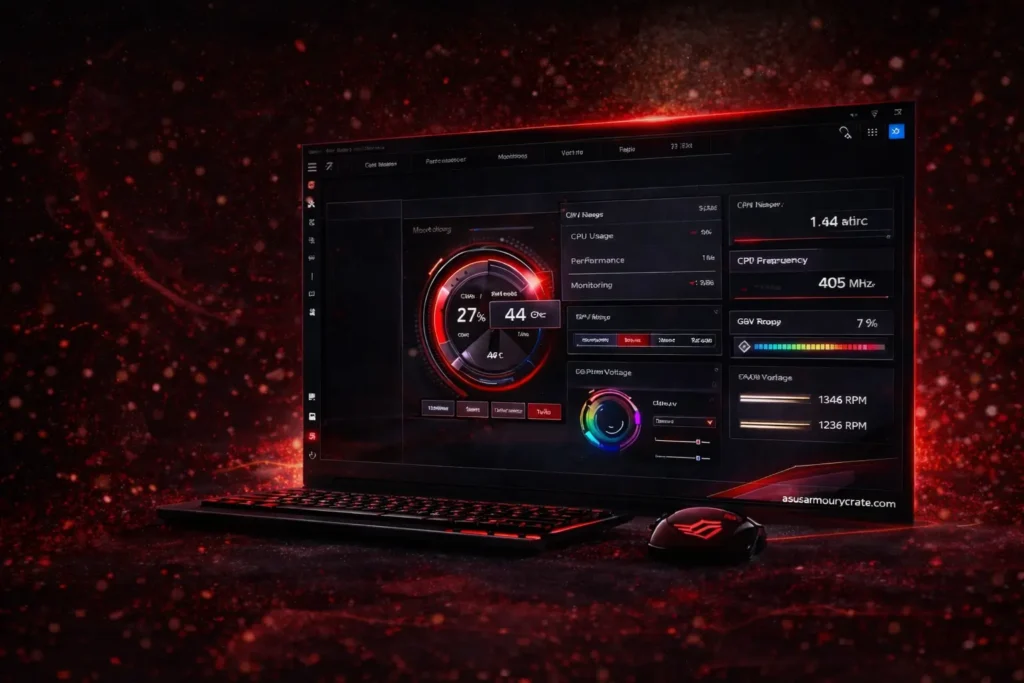
The software displays live system statistics such as CPU usage, GPU performance, temperatures, fan speeds, and memory usage in one dashboard.
Driver and Firmware Updates
Armoury Crate provides easy access to official ASUS driver and firmware updates, helping keep the system stable, secure, and up to date.
Fan and Cooling Control
Advanced fan control options allow users to manage cooling performance, balance system temperatures, and reduce noise during low workloads.
Device and Peripheral Management
Armoury Crate supports ASUS keyboards, mice, headsets, motherboards, and other devices, allowing centralized hardware management.
Game and Application Profiles
Users can create custom profiles for games and apps, automatically applying preferred performance modes and RGB settings when launched.
System Resource Optimization
The software helps optimize power usage and system resources, improving efficiency without compromising performance.
Unified Control Dashboard
Armoury Crate combines performance tuning, customization, monitoring, and updates into one clean and easy-to-use interface, eliminating the need for multiple tools.
Armoury Crate System Requirements & Details
| Software Name | Armoury Crate |
| Supported OS | Windows 10 (64-bit), Windows 11 (64-bit) |
| Latest Version | Depends on device model (Updated automatically via Armoury Crate) |
| File Size | Approx. 1–2 GB (varies by ASUS device and components) |
| Supported Devices | ASUS ROG & TUF laptops, desktops, motherboards, peripherals |
| Developer | ASUS |
| License | Free (Pre-installed or downloadable) |
| Main Features | RGB control (Aura Sync), performance modes, driver updates, system monitoring |
| Internet Required | Yes (for updates and online features) |
| Installation Method | Pre-installed on supported devices or installed via ASUS support |

How to Download Armoury Crate?
Downloading Armoury Crate is simple and safe. You can download Armoury Crate directly from Asusarmourycrate.com without any complicated steps. Our download section is designed to help ASUS ROG and TUF users get the software quickly and easily.
Step 1: Click the Download Button
Click the Download button available on this page to access the Armoury Crate download section. You will be redirected to a page where different Armoury Crate installer options are listed.
Step 2: Choose the Correct Installer
On the download page, you may see multiple options such as Armoury Crate & Aura Creator Installer and Armoury Crate SE Installer. Choose the installer that best matches your needs. The Armoury Crate & Aura Creator Installer is commonly preferred by most users.
Step 3: Download the ZIP File
After selecting the installer, click the Download option to start downloading the ZIP file. Save the file in an easy-to-find location, such as the Downloads folder.
Step 4: Extract the ZIP File
Once the download is complete, right-click on the ZIP file and select Extract All. This will create a new folder containing the Armoury Crate installer files.
Step 5: Run the Installer
Open the extracted folder and double-click the installer file to begin installation. Follow the on-screen instructions to complete the setup process.
Step 6: Launch Armoury Crate
After installation is finished, open Armoury Crate from the Start Menu or desktop shortcut. The software will detect compatible devices and prepare the dashboard automatically.
If you still need more help or want a clearer explanation, don’t worry at all. The video below walks you through everything step by step in an easy way.
How to Install and Set Up Armoury Crate?
Installing and setting up Armoury Crate is a simple process that helps you quickly start managing your ASUS ROG or TUF device. Follow the steps below to complete the installation and initial setup smoothly.
Step 1: Open the Installer
After extracting the downloaded ZIP file, open the folder and double-click the Armoury Crate installer file. This will start the installation process on your system.
Step 2: Allow Required Permissions
When prompted, allow the necessary system permissions so the installer can make changes. These permissions are required for proper installation and hardware detection.
Step 3: Complete the Installation
Follow the on-screen instructions and wait for the installation to finish. The process may take a few minutes depending on your system.
Step 4: Restart Your System
Once installation is complete, restart your computer if prompted. Restarting helps ensure all Armoury Crate components work correctly.
Step 5: Launch Armoury Crate
Open Armoury Crate from the Start Menu or desktop shortcut. The software will automatically scan and detect compatible ASUS hardware.
Step 6: Finish Initial Setup
Complete the first-time setup by reviewing basic settings and preferences. After setup, you can start customizing performance modes, RGB lighting, and device options.
What Are the Performance Modes in Armoury Crate?
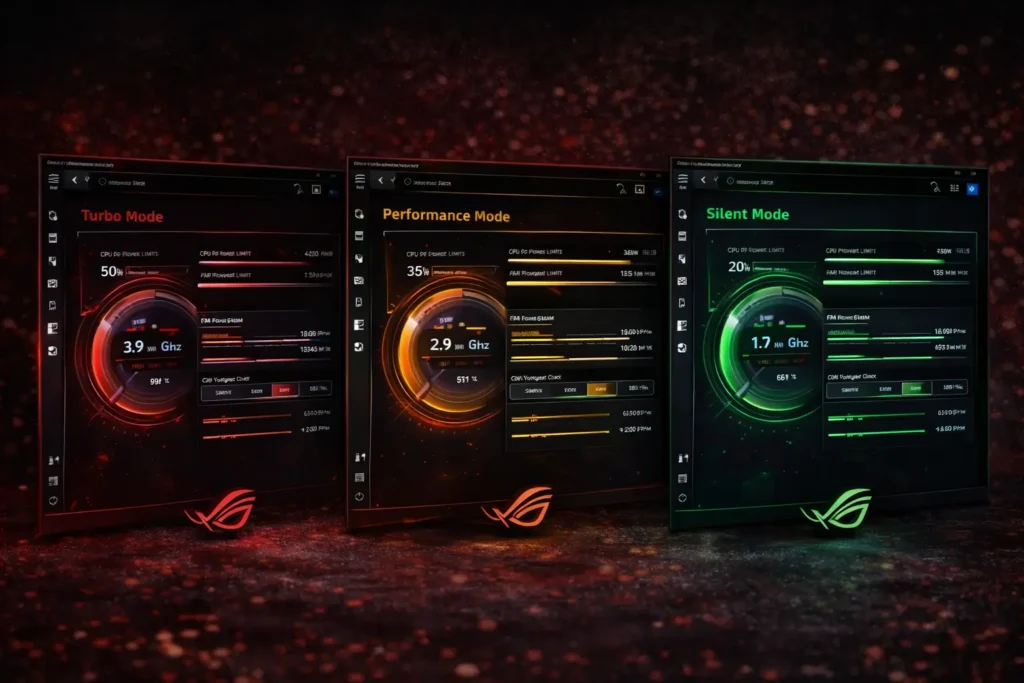
Armoury Crate includes multiple performance modes that allow users to adjust system behavior based on their needs. These modes help balance performance, cooling, and power usage for gaming, work, or quiet environments.
Turbo Mode
Turbo Mode delivers maximum performance by increasing CPU and GPU power limits and boosting fan speeds. It is best suited for gaming, video editing, and other heavy workloads where high performance is required.
Performance Mode
Performance Mode offers a balanced experience by optimizing system power and cooling without pushing hardware to its limits. This mode is ideal for everyday tasks, multitasking, and moderate gaming.
Silent Mode
Silent Mode reduces system noise and power consumption by limiting performance and slowing fan speeds. It is perfect for light tasks, browsing, and quiet environments such as offices or classrooms.
If you are worried about FPS drops or battery drain? Learn how Armoury Crate affects gaming performance and battery life before changing your settings.
Is Armoury Crate Safe to Use?
Yes, Armoury Crate is safe to use when downloaded from trusted sources. It is an official ASUS software designed for ROG and TUF devices and is commonly pre-installed on supported systems. The software is regularly updated to improve performance, stability, and compatibility. It does not contain malware and is built to work securely with ASUS hardware.
What Is the Difference Between Armoury Crate, Armoury Crate SE, and Aura Creator?
Armoury Crate, Armoury Crate SE, and Aura Creator are ASUS software tools designed for different purposes. Each option offers a different level of system control, performance management, and RGB lighting customization.
Understanding the differences helps users choose the right software based on their needs, device support, and level of customization required.
| Feature | Armoury Crate | Armoury Crate SE | Aura Creator |
|---|---|---|---|
| Main Purpose | Complete system management | Basic control & lighting | Advanced RGB lighting design |
| Performance Modes | Yes (Turbo, Performance, Silent) | No | No |
| RGB Lighting Control | Yes (Aura Sync) | Yes (Basic) | Yes (Advanced) |
| Custom RGB Effects | Limited | Limited | Fully customizable |
| System Monitoring | Yes (CPU, GPU, temps, fans) | No | No |
| Driver & Firmware Updates | Yes | No | No |
| Device Management | Yes (ROG & TUF devices) | Limited | No |
| Ease of Use | Moderate | Very Easy | Advanced |
| Best For | Most ASUS ROG & TUF users | Basic users | RGB enthusiasts |
Some ASUS users prefer a lighter setup, while others need full control, which is why choosing between the Lite and Full versions of Armoury Crate matters.
Common Armoury Crate Issues & Fixes
1. Armoury Crate Not Opening
Users may sometimes face minor issues while using Armoury Crate. Most of these problems are common and can be fixed easily with basic troubleshooting steps.
If Armoury Crate is not opening, restart your system and try running the software as an administrator. Reinstalling Armoury Crate or updating it to the latest version often fixes launch-related issues.
2. Aura Sync Not Working
When Aura Sync is not working in Armoury Crate, check that all RGB-supported devices are properly connected. Restart the software and reapply the lighting effects to restore synchronization.
3. Armoury Crate Not Detecting Devices
If Armoury Crate is not detecting your ASUS device, make sure the hardware is supported. Updating system drivers or reconnecting the device can usually solve this problem.
4. Armoury Crate Installation Failed
If the Armoury Crate installation fails, ensure your system meets the minimum requirements. Extract the installer correctly and temporarily disable conflicting software before reinstalling.
Some users also run into RGB lighting problems, especially when Aura Sync stops working properly on their ASUS laptop.
Frequently Asked Questions
What is Armoury Crate used for?
Armoury Crate is used to manage performance, cooling, RGB lighting, and system settings on supported ASUS ROG and TUF devices from one central dashboard.
Is Armoury Crate free to use?
Yes, Armoury Crate is completely free for compatible ASUS devices. There are no paid features or subscriptions required.
Does Armoury Crate work on all ASUS laptops?
No, Armoury Crate only works on supported ASUS ROG and TUF models. Some standard ASUS laptops may not support it.
Is Armoury Crate safe to install?
Yes, Armoury Crate is safe when downloaded from trusted sources. It does not contain malware and is designed to work securely with ASUS hardware.
Can I uninstall Armoury Crate?
Yes, Armoury Crate can be uninstalled, but some ASUS features like performance modes and RGB control may stop working properly afterward.
Does Armoury Crate improve gaming performance?
Armoury Crate helps optimize system performance by allowing users to switch performance modes, manage cooling, and monitor hardware during gaming.
Why is Armoury Crate not opening?
Armoury Crate may not open due to outdated files or installation issues. Restarting the system or reinstalling the software usually fixes the problem.
Why is Aura Sync not working in Armoury Crate?
Aura Sync may not work if devices are not supported or properly connected. Restarting Armoury Crate and reapplying RGB settings often resolves the issue.
Does Armoury Crate run in the background?
Yes, Armoury Crate runs in the background to manage system performance, device control, and monitoring features.
Is Armoury Crate required for ASUS laptops?
Armoury Crate is not mandatory, but it is recommended for full access to ASUS-specific features like performance profiles and RGB customization.
Can Armoury Crate cause high CPU usage?
In some cases, Armoury Crate may use more system resources during updates or scanning. Keeping the software updated usually reduces CPU usage.
Does Armoury Crate support Windows 11?
Yes, Armoury Crate supports both Windows 10 and Windows 11 (64-bit versions).

Alex
Hey there, I am a technology researcher and content writer who focuses on system software, PC utilities, and performance tools. I create simple, easy-to-understand guides to help users learn how software like ASUS Armoury Crate works without confusion.
I research features, test common functions, and explain technical topics in clear language so both beginners and experienced users can follow along easily. My goal is to provide accurate, helpful, and up-to-date information that makes technology easier for everyone.