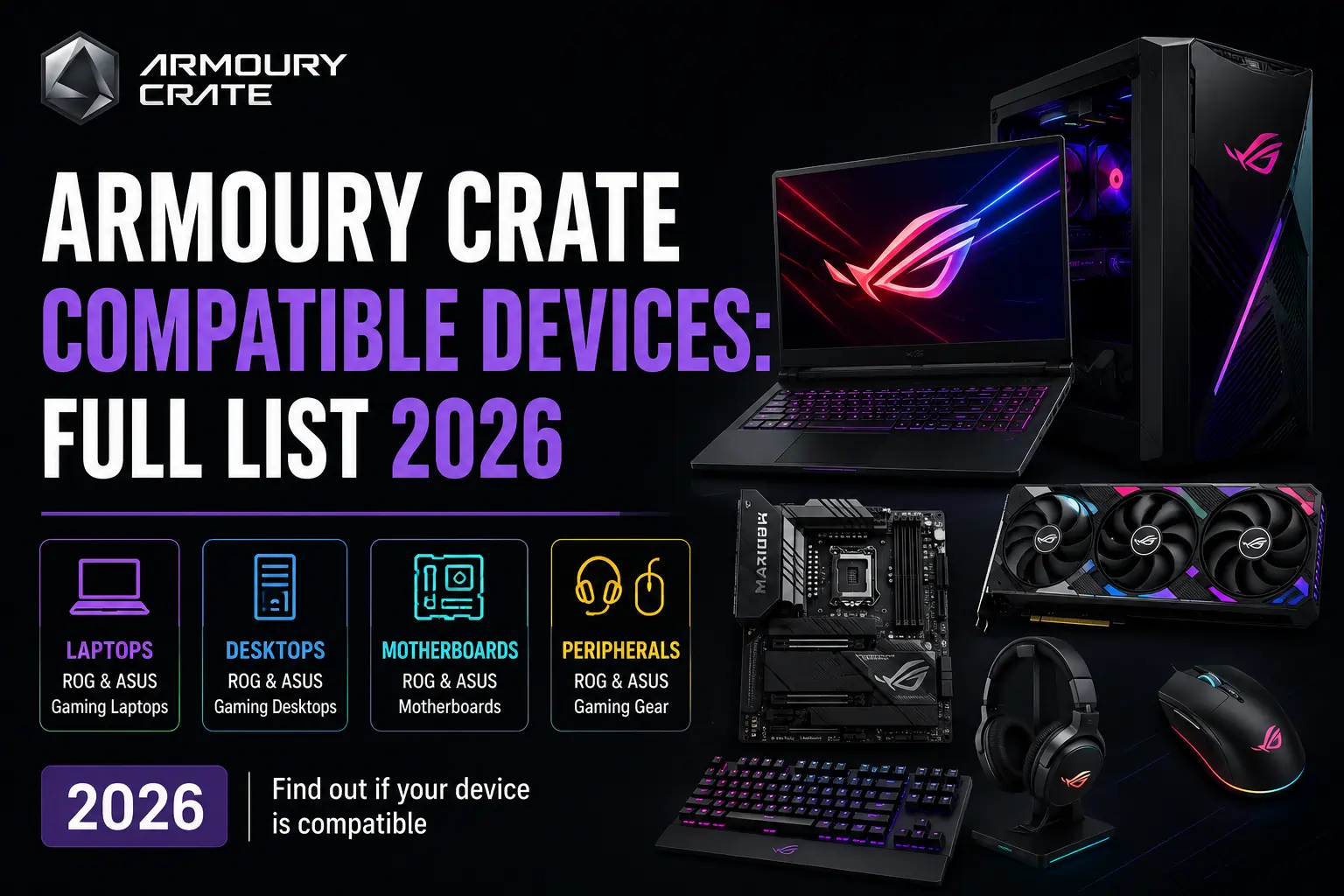
If you’ve ever wondered whether your ASUS device actually supports Armoury Crate or why the software refuses to install properly you’re in the right place. This guide breaks down every compatible device category, what Armoury Crate does on each one, and what to do if yours isn’t playing nice.
What Is Armoury Crate and Why Does Compatibility Matter?
Armoury Crate is ASUS’s all-in-one system management software. It lets you control RGB lighting, fan speeds, performance modes, and connected peripherals all from one dashboard.
But here’s the thing: not every ASUS product supports it. Armoury Crate is built for ROG (Republic of Gamers), TUF Gaming, and select ASUS product lines. Running it on an unsupported device for system-level control won’t do anything useful.
Knowing your device is on the compatible list before installing saves you a lot of frustration.
Is Armoury Crate Compatible With Your Device? (Quick Check)
The fastest way to know: if your device shipped with Armoury Crate pre-installed, or if a pop-up offered to install it on first Windows boot, it’s supported.
You can also check manually:
- Go to ASUS Driver & Tools
- Search your exact model number
- If “Armoury Crate” appears in the software/utilities list you’re good
If it doesn’t appear at all, your device is not officially supported for system-level control.
Note: Even if your PC or laptop isn’t compatible, you can still install Armoury Crate to manage ROG or TUF Gaming peripherals (mouse, keyboard, headset) connected to it. More on this in the section below.
Armoury Crate Compatible Laptops
Armorycrate Compatible devices are given below:
ROG Gaming Laptops (Full Support)
ROG laptops are the primary devices Armoury Crate is built for. On most models, you get full access Scenario Profiles, Aura Sync, fan curve control, and real-time GPU/CPU monitoring.
Compatible ROG laptop lines include:
- ROG Zephyrus series (G14, G15, G16, M16, Duo 16)
- ROG Strix series (G15, G17, SCAR 15, SCAR 16, SCAR 17, SCAR 18)
- ROG Flow series (X13, X16, Z13)
- ROG Ally and ROG Ally X (handheld uses Armoury Crate SE, covered separately below)
- ROG Zephyrus S and GX series (older gen, still supported)
Important note on some 2024 Zephyrus models: The ROG Zephyrus G14 (GA403), G16 (GU605), and G16 (GA605) from 2024 are listed by ASUS as “RGB device only” meaning Armoury Crate controls their lighting but does NOT manage performance modes or fan profiles on these specific models. Always check your exact model code against the official ASUS compatible devices page if you’re unsure.
TUF Gaming Laptops (Supported, Fewer RGB Options)
TUF Gaming laptops fully support Armoury Crate. The main difference from ROG is that many TUF models have limited or no per-key RGB lighting, so the Aura Sync options are simpler.
Compatible TUF laptop lines:
- TUF Gaming A15, A16, A17
- TUF Gaming F15, F17
- TUF Gaming FX505, FX506, FX707 series
- TUF Dash 15
Fan curve control, battery health mode (50%/80% charge limit), and performance mode switching all work on TUF laptops.
ASUS ProArt StudioBook (Supported)
ProArt StudioBook laptops built for creators also support Armoury Crate. The focus here is performance profiles and fan control rather than RGB lighting, since most ProArt models don’t have gaming-style RGB.
Compatible models include:
- ProArt Studiobook 16 OLED
- ProArt Studiobook Pro 16 OLED
- ProArt Studiobook 13 OLED
Armoury Crate Compatible Desktops
ROG Gaming Desktops
ASUS ROG desktop systems fully support Armoury Crate for system-level control performance profiles, RGB management, and connected peripheral control all work.
Compatible ROG desktop lines:
- ROG Strix GA15, GA35
- ROG Strix GT15, GT35
- ROG Huracan G21
ROG NUC (Mini PC)
The ROG NUC runs standard Armoury Crate (v6.0) not Armoury Crate SE. On the NUC, Armoury Crate handles Aura Sync for connected peripherals, system monitoring, and device management just like it does on a full desktop.
ASUS All-in-One PCs (Limited Support)
Some ASUS ROG All-in-One PCs support Armoury Crate for basic performance tuning and system monitoring. RGB control options are limited since most AIOs don’t have addressable lighting headers.
Armoury Crate Compatible Motherboards
This is where Armoury Crate becomes especially powerful for custom PC builders. On a desktop with a supported ASUS motherboard, Armoury Crate controls every RGB header, fan header, and connected ASUS peripheral from one place.
Supported motherboard series include:
- ROG Maximus
- ROG Crosshair
- ROG Strix
- TUF Gaming
- Prime
- ProArt
Key thing to know about fan control: ASUS officially confirmed that full Fan Xpert integration inside Armoury Crate begins from the Intel 600 series and AMD X670E series onwards. If your motherboard is older than these generations (for example, a Z490, Z390, or X570 board), fan speed management may be handled by the separate Fan Xpert application instead of directly inside Armoury Crate. The rest of Armoury Crate’s features RGB, device management, system monitoring still work on older supported boards.
For the exact list of supported motherboard models, ASUS maintains an updated page at their official support FAQ which is more reliable than any third-party list.
Armoury Crate Compatible Monitors
ASUS ROG and TUF monitors with built-in Aura Sync RGB lighting can sync with Armoury Crate.
Compatible monitor lines:
- ROG Swift series (PG series with Aura Sync)
- ROG Strix monitors (XG series)
- TUF Gaming monitors (VG series with lighting)
How the connection works: Most monitors need a USB cable connected to your PC (in addition to the display cable) for Armoury Crate to detect and control the lighting. Some newer ROG monitors also support Aura Sync synchronization via DisplayPort check your specific monitor’s manual to confirm which method it uses.
Armoury Crate Compatible Peripherals
One useful thing many people don’t realize: you can install Armoury Crate on any PC — even a non-ASUS one just to manage compatible ROG or TUF peripherals. System-level features (performance modes, fan control) won’t work without ASUS hardware, but RGB control and macro programming for your peripherals will.
Keyboards
- ROG Claymore / Claymore II
- ROG Strix Flare / Strix Flare II / Strix Flare II Animate
- ROG Strix Scope series (all variants including RX, NX, TKL, Wireless)
- ROG Strix Scope II / Scope II RX / Scope II 96 Wireless
- ROG Falchion / Falchion NX / Falchion Ace / Falchion Ace HFX
- ROG Azoth / Azoth Extreme / Azoth X
- TUF Gaming K1, K3, K3 Gen II, K5, K7
Mice
- ROG Gladius / Gladius II / Gladius III (all variants including Wireless and AimPoint)
- ROG Strix Impact / Impact II / Impact III (and wireless variants)
- ROG Strix Carry
- ROG Chakram / Chakram Core / Chakram X
- ROG Pugio / Pugio II
- ROG Spatha / Spatha X
- ROG Keris / Keris Wireless / Keris II Ace / Keris II Origin
- ROG Harpe Ace (Aim Lab Edition, Mini, Extreme)
- TUF Gaming M3 / M3 Gen II / M4 Air / M4 Wireless / M5
Headsets
- ROG Delta / Delta II / Delta S (and special editions)
- ROG Strix Fusion 500 / 700 / Fusion II 300 / Fusion II 500
- ROG Theta series
- ROG Strix series headsets
Other Peripherals
- ROG Balteus Qi (gaming mousepad with RGB)
- ROG Aura Terminal (standalone RGB hub for connecting non-Aura devices)
- ROG Strix Arion / Arion Lite / Arion S500 (portable SSDs with RGB)
Armoury Crate Compatible Graphics Cards
ASUS ROG and TUF GPUs support Aura Sync RGB control through Armoury Crate.
Compatible GPU lines:
- ROG STRIX RTX/RX series (including RTX 4090, 4080, 4070, and RX 7900 XTX, etc.)
- TUF Gaming RTX/RX series
- ASUS DUAL RTX/RX series
- ASUS ProArt RTX series
If you have an Armoury Crate high CPU/RAM usage problem on a system with one of these GPUs, it’s often the background GPU detection service running repeatedly — not the card itself causing the issue.
Tip for non-ASUS motherboard users: If you only have an ASUS GPU on a non-ASUS board, ASUS recommends using GPU Tweak III as a standalone app rather than the full Armoury Crate install. It handles everything Armoury Crate would do for just the GPU, without the extra overhead.
What Is Armoury Crate SE? (And Which Devices Actually Use It)
Armoury Crate SE is a purpose-built version of the software designed specifically for the ROG Ally handheld gaming console. It is not a stripped-down version — it’s designed from the ground up for a handheld form factor with a gamepad interface.
Armoury Crate SE is currently supported on:
- ROG Ally (2023) — RC71L
- ROG Ally X (2024) — RC72LA
- ROG Xbox Ally (2025) — RC73YA
- ROG Xbox Ally X (2025) — RC73XA
What Armoury Crate SE does on these devices:
- Game Library management
- Performance profile and TDP control
- Aura Sync lighting for connected peripherals
- Gamepad Control Mode customization (button mapping, sticks, triggers, gyro)
- Real-time system monitoring
- Wi-Fi and Bluetooth connection management
The ROG NUC is NOT on this list. The NUC runs standard Armoury Crate v6.0. If you own a NUC, don’t look for SE just install the regular version.
You can read more about what’s new in Armoury Crate SE and who should use it to understand everything it offers on the ROG Ally.
Devices That Are NOT Compatible With Armoury Crate (For System Control)
These ASUS devices do not support Armoury Crate for system-level management:
- VivoBook series — mainstream consumer line, no ROG/TUF gaming features
- ZenBook series — productivity and ultrabook line
- ExpertBook series — business laptops
- Chromebook models — incompatible OS entirely
- ROG Phone (standalone) — uses the separate Armoury Crate Mobile app instead
What if you have ROG peripherals but an incompatible PC? You can still install Armoury Crate on a VivoBook, ZenBook, or even a completely non-ASUS PC — it won’t manage the system, but it will let you configure your ROG mouse, keyboard, or headset’s lighting and macros. This is an officially supported use case from ASUS.
However, if you have no ASUS peripherals at all and your laptop is a VivoBook or ZenBook, then you should uninstall Armoury Crate it adds background processes with zero benefit in that case.
Armoury Crate Not Detecting Your Compatible Device? Here’s Why
Even if your device is on the supported list, Armoury Crate sometimes fails to detect it. These are the most common reasons:
1. Missing ASUS System Control Interface driver This driver is what allows Armoury Crate to communicate with your ASUS hardware. It must be installed before Armoury Crate. Download it from the ASUS support page for your specific model.
2. Peripheral plugged into a USB hub Peripherals connected through USB hubs are sometimes missed during detection. Plug directly into a port on the motherboard I/O panel or laptop chassis.
3. Armoury Crate is out of date ASUS regularly adds support for new devices via software updates. If your peripheral launched after your installed version, update Armoury Crate first through its built-in Update Center.
4. The Armoury Crate service isn’t running Open Task Manager and look for “ArmouryCrateService.exe” under Background Processes. If it isn’t running, the app can’t detect anything. A fresh reinstall usually fixes this.
If Armoury Crate still won’t open or detect anything after trying these steps, the fix for Armoury Crate not working or opening guide walks through a complete solution.
Aura Sync Compatibility Within Armoury Crate
Aura Sync is the RGB synchronization system built into Armoury Crate. It lets all your compatible ASUS devices motherboard headers, GPU, keyboard, mouse, monitor light up in the same effect at the same time.
For Aura Sync to work across your devices, each one must:
- Be Aura Sync certified (ASUS maintains the full list on their official Aura Sync page)
- Be connected properly USB for peripherals, PCIe slot for GPUs, USB plus display cable for monitors
- Have up-to-date firmware (the Armoury Crate Update Center handles this automatically)
Third-party RGB devices are not controlled by Armoury Crate unless the manufacturer has specifically built in Aura Sync support and advertises it. If you’re having sync problems across your setup, the Aura Sync download, setup, and fix guide covers the complete setup process from scratch.
Custom Fan Curves on Compatible Devices
On supported laptops and desktops, Armoury Crate lets you draw a custom fan curve setting exact fan speeds at specific temperature points rather than relying on preset modes.
This feature is available on:
- ROG laptops with Armoury Crate support
- TUF Gaming laptops (A15, F15, and most newer models)
- Desktop motherboards from Intel 600 series / AMD X670E and newer (older boards use Fan Xpert instead)
If you want full hands-on control of your cooling without guessing, the custom fan curves setup guide shows exactly how to build a curve that keeps your system cool and quiet.
Final : Is Your Device Compatible?
Here’s the clearest summary:
| Device | Compatible? | What Works |
|---|---|---|
| ROG laptop | Yes | Full support — performance, Aura Sync, fan control |
| TUF Gaming laptop | Yes | Full support — limited RGB on some models |
| ProArt StudioBook | Yes | Performance and fan control, minimal RGB |
| ROG Ally / Ally X | Yes (Armoury Crate SE) | Handheld-specific version |
| ROG NUC | Yes (standard AC v6.0) | Full Armoury Crate, not SE |
| ROG/TUF desktop | Yes | Full support |
| ASUS ROG/TUF motherboard | Yes | Full RGB + fan control |
| ASUS ROG/TUF GPU | Yes | Aura Sync RGB |
| ROG/TUF peripherals | Yes | Works on any PC for RGB/macros |
| ROG monitors (Aura Sync) | Yes | Via USB + display cable |
| VivoBook / ZenBook / ExpertBook | No (system control) | Peripheral RGB only if you have ROG gear |
| Non-ASUS PC | No (system control) | Peripheral RGB only |
| Chromebook | No | Incompatible OS |
The biggest takeaway: Armoury Crate is not all-or-nothing. Even on a non-ASUS or non-gaming PC, it can still manage your ROG peripherals. But for performance profiles, fan curves, and full system control, you need a supported ROG, TUF, or ASUS gaming device.