Quick Answer:
ASUS Virtual Pet is an interactive desktop companion featuring OMNI on supported ASUS and ROG devices. ASUS now refers to newer versions as Virtual Assistant OMNI, which was originally known as Virtual Pet. Depending on the supported device and software version, OMNI can display system information and animations, while newer versions may also provide AI-assistant features.
What Is ASUS Virtual Pet (OMNI)?
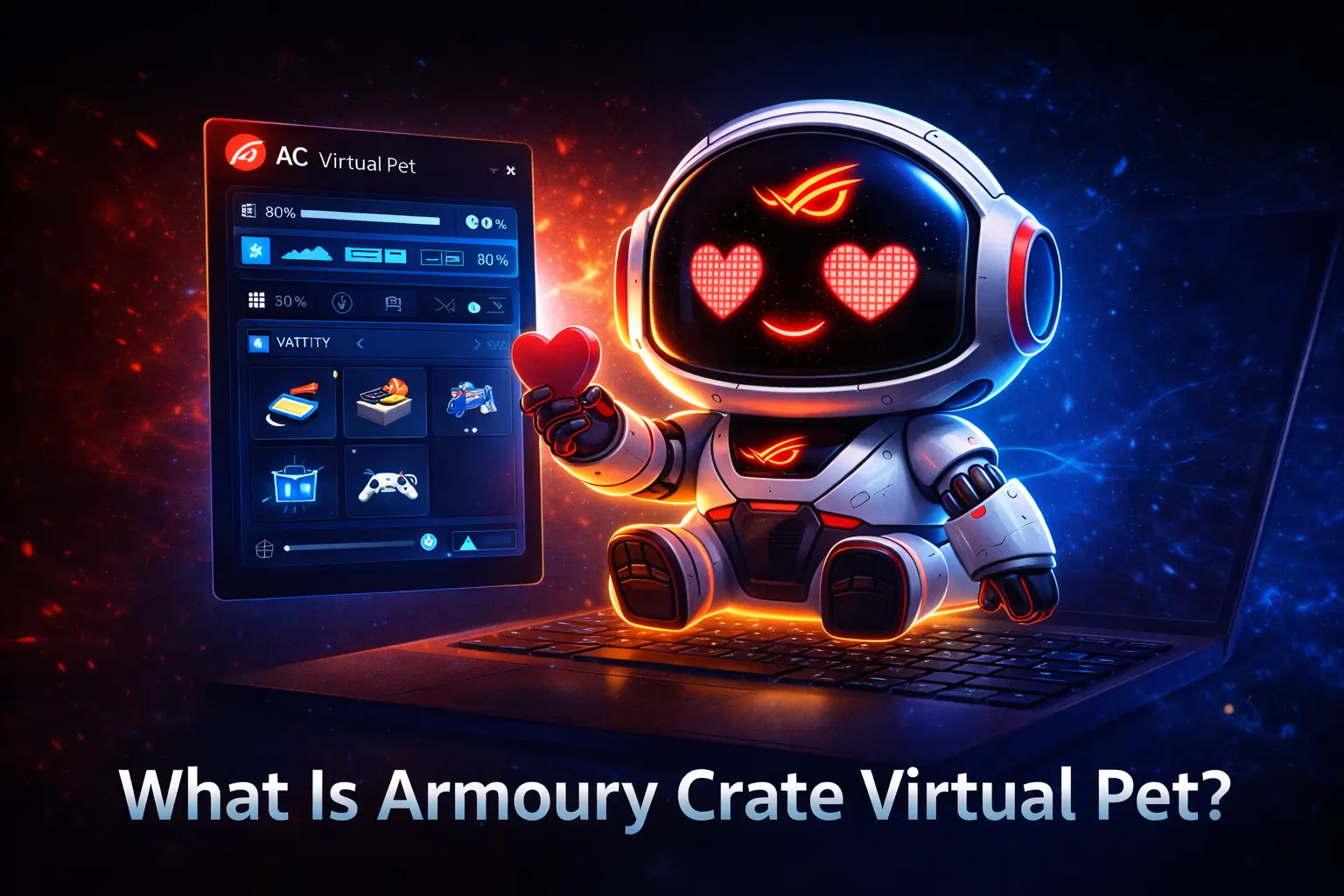
ASUS Virtual Pet is a small character that can appear on your computer screen. It was first called Virtual Pet, and ASUS now calls newer versions Virtual Assistant – OMNI.
It can show information about your computer and change its animations. On some ASUS and ROG computers, newer versions of OMNI also have AI features that can help you with simple tasks.

The feature is part of Armoury Crate from ASUS. It can work with things like RGB lights, fan control, and performance modes. The Virtual Pet gives you simple visual information about your computer, so you can understand what is happening without looking at complicated numbers.
ASUS Virtual Pet vs OMNI Virtual Assistant
Virtual Pet was the original name ASUS used for this desktop character. ASUS now calls the newer version Virtual Assistant – OMNI. ASUS OMNI Virtual Pet can offer more features on supported ASUS and ROG devices, including some AI features. The features may be different depending on your device and software version.
How Does ASUS Virtual Pet (OMNI) Work?
ASUS Virtual Pet works through the software installed on your compatible ASUS or ROG computer. Its available functions depend on your device and the version of OMNI or Armoury Crate you are using.
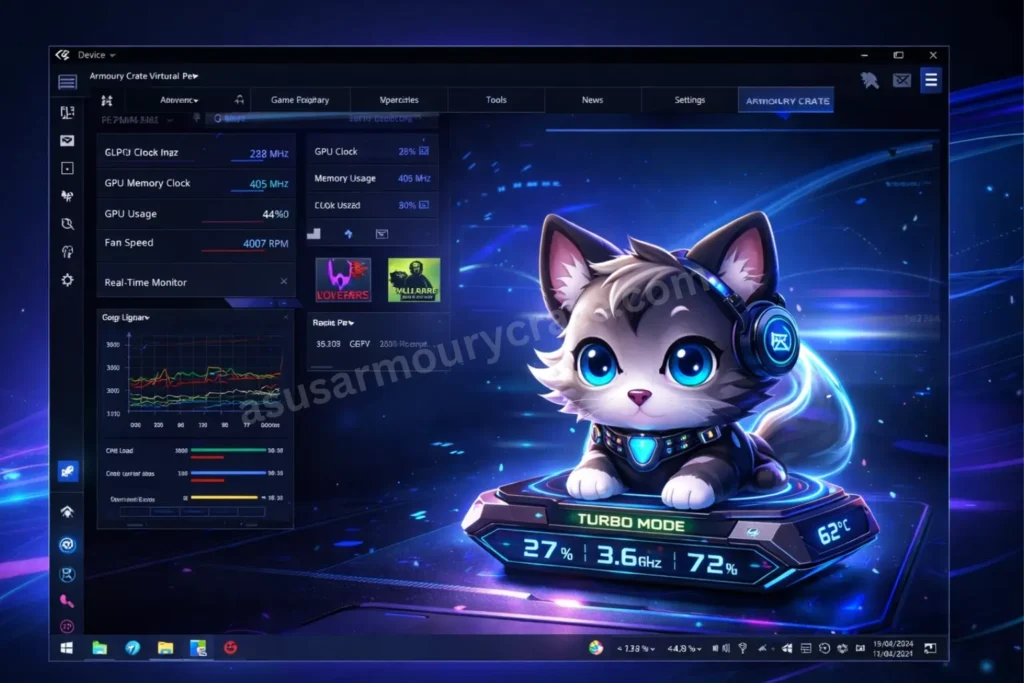
1. Shows Computer Information
OMNI can display useful information about your computer, making it easier to check your system without going through many settings.
2. Reacts With Animations
The Virtual Pet uses different animations to make the desktop experience more interactive. Its behavior and available animations can vary depending on the supported device and software version.
3. Works With Armoury Crate
On supported devices, OMNI works as part of the ASUS software ecosystem and can be accessed through Armoury Crate. The options available may differ between devices.
4. AI Features in Newer Versions
Newer versions of OMNI can provide additional AI features on supported devices. These may include asking questions, working with files, summarizing documents, and converting audio to text.
5. Features Can Differ by Device
Not every ASUS or ROG computer supports the same OMNI features. What you can use depends on your device model and software version.
What Is VirtualPet.exe in ASUS Virtual Pet?
VirtualPet.exe is a program related to the ASUS Virtual Pet feature. It can run in the background and display the Virtual Pet on supported ASUS and ROG computers.
If you see VirtualPet.exe in Task Manager or your startup apps, it does not automatically mean that it is malware. It can be part of the ASUS software installed on your computer.
If you don’t want VirtualPet.exe to run, you can disable it from the Virtual Pet settings or stop it from starting with Windows through Task Manager → Startup apps.
How to Disable or Remove ASUS Virtual Pet?
If you do not want to use ASUS Virtual Pet or OMNI, you have several options. You can turn it off, stop it from starting with Windows, or uninstall the application completely.
Disable ASUS Virtual Pet
If you only want to hide the Virtual Pet, you can turn it off from its settings.
- Open Armoury Crate on your ASUS computer.
- Open the OMNI or Virtual Assistant section if it is available.
- Open its settings.
- Turn off the option for the Virtual Assistant or Virtual Pet.
This disables the feature without removing the application.
Stop VirtualPet.exe From Starting With Windows
If you want to keep Virtual Pet installed but do not want it to start automatically:
- Press Ctrl + Shift + Esc to open Task Manager.
- Click Startup apps.
- Look for VirtualPet or a related ASUS Virtual Assistant entry.
- Select it and click Disable.
This only stops the program from starting with Windows. It does not uninstall Virtual Pet.
Uninstall ASUS Virtual Pet
If you want to remove the application completely, use the official ASUS uninstall method for Virtual Assistant. ASUS says the application can be installed through Armoury Crate’s Feature → Recommended section or through MyASUS → System Update, and its support page provides the uninstall guidance.
If you are trying to remove Armoury Crate itself, do not simply disable Virtual Pet. ASUS provides a separate Armoury Crate Uninstall Tool for removing Armoury Crate and its related components.
Why Does the Virtual Pet Update Package Keep Popping Up?
The Virtual Pet update package may keep appearing when the ASUS software needs an update or when an update does not install correctly. It can also happen when the Virtual Pet or OMNI software is not fully updated.
How to Fix It
- Update Armoury Crate
Open Armoury Crate and check for available updates. - Check for OMNI updates
If OMNI or Virtual Assistant is installed, check whether a newer version is available. - Restart your computer
After installing an update, restart Windows and check if the message appears again. - Make sure Windows is updated
Install any available Windows updates and restart your computer. - Reinstall the Virtual Pet/OMNI software
If the update message continues to appear, reinstalling the related ASUS software may help.
If the message keeps appearing after these steps, check ASUS support for your specific device and software version, because the available Virtual Pet/OMNI features can differ between ASUS models.
How to Download and Install ASUS Virtual Pet (OMNI)
ASUS Virtual Pet or OMNI is available on supported ASUS and ROG computers. You may not see it on every ASUS device, and the available options can depend on your device and software version.

1. Open Armoury Crate
Open Armoury Crate on your ASUS or ROG computer.
2. Check for OMNI or Virtual Assistant
Look for OMNI or Virtual Assistant in Armoury Crate. If the feature is available for your device, follow the instructions shown there.
3. Install the feature
If Armoury Crate shows an option to install OMNI or Virtual Assistant, click it and follow the instructions on the screen.
4. Open OMNI
After installation, open OMNI and check the features available on your computer.
5. Keep ASUS software updated
If you cannot find Virtual Pet or OMNI, make sure Armoury Crate and your ASUS software are up to date. The feature may also depend on your ASUS device model.
Note: There may not be a separate Virtual Pet download file for every ASUS computer. Availability depends on the supported device and ASUS software version.
Once OMNI is installed and enabled, open it from the available ASUS software and use the options provided for your device.
Troubleshooting Common Issues
Virtual Pet not appearing on screen
If Virtual Pet or OMNI is not showing on your screen, first check if your ASUS device supports it. Make sure Armoury Crate and the related ASUS software are up to date. After updating, restart your computer and check again.
Animations running slow or choppy
If the animations are slow or not smooth, close some unnecessary apps and make sure your graphics drivers are updated. You can also restart your computer and check again.
Virtual Pet not responding to performance changes
If Virtual Pet or OMNI is not responding, check that the feature is enabled and that you are using the latest version of the related ASUS software.
High resource usage on older systems
If you notice high CPU or memory usage, check Task Manager to see which program is using the resources. Close unnecessary apps and make sure Armoury Crate and OMNI are updated.
Also Read: Does Armoury Crate Reduce FPS?
Conclusion
ASUS Virtual Pet is an interactive feature available on some ASUS and ROG computers. ASUS now uses the name Virtual Assistant – OMNI for newer versions. The features can be different depending on your device and software version.
If you use Virtual Pet or OMNI, you can keep it enabled and use the available features. If you don’t need it, you can disable it, stop it from starting with Windows, or remove it using the appropriate ASUS uninstall method.
FAQs About Armoury Crate Virtual Pet
Can ASUS Virtual Pet be turned off?
Yes. On supported ASUS devices, you can turn off Virtual Pet or OMNI from its available settings. You can also stop the related program from starting with Windows without uninstalling it.
Does VirtualPet.exe run in the background?
Yes, VirtualPet.exe may run in the background when the related ASUS Virtual Pet feature is enabled. You can check Task Manager to see if it is running. If you don’t want it to start with Windows, you can disable its startup entry.
What does a virtual pet do?
ASUS Virtual Pet is a small desktop character that can show computer information and use different animations. Newer versions of OMNI may also provide additional assistant and AI features on supported devices.
What is virtual pet in my startup apps?
Virtual Pet in Startup Apps is related to the ASUS Virtual Pet or OMNI software. If it is enabled, it can start automatically when Windows starts. You can disable it from Task Manager → Startup apps if you don’t want it to start automatically.
What is VirtualPet.exe?
VirtualPet.exe is a program related to the ASUS Virtual Pet feature. You may see it running in Task Manager or listed in Windows Startup Apps on supported computers.
Can ASUS Virtual Pet be turned off?
Yes. If your ASUS device provides the option, you can turn off Virtual Pet or OMNI from its available settings. You can also stop the related program from starting with Windows without uninstalling it.
How do I remove ASUS Virtual Pet?
You can disable the feature if you only want to stop using it. If you want to remove it completely, use the appropriate ASUS uninstall method for the Virtual Assistant/OMNI software.
Does ASUS Virtual Pet work on every ASUS computer?
No. Virtual Pet and OMNI are available only on supported ASUS and ROG devices. The available features can also vary depending on the device and software version.