Quick Answer:
If Armoury Crate is not detecting your GPU or graphics card, it’s usually caused by outdated ASUS services, disabled GPU drivers, Hybrid Graphics (MUX) misconfiguration, or corrupted Armoury Crate components. In most cases, the issue can be fixed by restarting ASUS services, updating GPU drivers, switching to Discrete GPU mode, reinstalling Armoury Crate, or updating BIOS and Windows.
Are you frustrated because Armoury Crate is not detecting your GPU? You’re not alone. Thousands of ASUS laptop and desktop users face this exact problem every day. The good news? This guide covers 8 proven solutions that actually work in 2026.
Whether you’re using an ASUS ROG laptop with an NVIDIA RTX GPU or an AMD Radeon graphics card, these fixes will help you get Armoury Crate to recognize your GPU again.
Why Armoury Crate Can’t Detect Your GPU?
Before jumping into solutions, understanding why Armoury Crate isn’t detecting your GPU helps you choose the right fix. Here are the main causes:
Common Causes:
- Outdated Armoury Crate Version: A version mismatch between Armoury Crate and installed GPU drivers can prevent the software from detecting the graphics card.
- Missing or Corrupted GPU Drivers: Outdated, corrupted, or incorrectly installed graphics drivers stop Armoury Crate from recognizing the GPU.
- Windows Service Issues: Required ASUS and Windows background services not running properly can block GPU information from loading.
- Incorrect BIOS Settings: If the discrete GPU is disabled in BIOS, the system will rely only on integrated graphics, hiding the GPU from Armoury Crate.
- Registry Conflicts: Leftover registry entries from previous Armoury Crate installations can interfere with proper GPU detection.
- Optimus / Switchable Graphics Misconfiguration: Improper hybrid graphics settings may hide the discrete GPU during normal system operation.
- Windows Update Compatibility Issues: Recent Windows updates can introduce driver or service conflicts that break Armoury Crate’s GPU detection.
- Hardware Detection Failures: Errors or disabled devices in Device Manager can prevent Armoury Crate from identifying the graphics card.
Pro tip: Update to Armoury Crate version 5.8.12 or newer to fix Windows 11 24H2 GPU detection issues
Quick Fixes (Try These First)
Before diving into detailed solutions, try these 3 quick fixes. They solve 60% of GPU detection issues:
Quick Fix #1: Restart Armoury Crate Service
Steps:
- Press
Win + R, typeservices.msc, hit Enter - Find “Armoury Crate Service”
- Right-click → Restart
- Also restart “ASUS System Control Interface V3”
- Open Armoury Crate and check
Why it works: Services can hang during Windows updates or system sleep.
Quick Fix #2: Update GPU Drivers
Steps:
- Press
Win + X, select Device Manager - Expand Display adapters
- Right-click your GPU → Update driver
- Choose Search automatically
- Restart your PC
Better method: Download directly from NVIDIA or AMD (more reliable than Windows Update).
Quick Fix #3: Reinstall Armoury Crate
Sometimes a clean install fixes everything:
- Visit ASUS Armoury Crate Download
- Download the latest version
- Use Windows Add/Remove Programs to uninstall current version
- Restart your PC
- Install the new version
- Restart again
8 Detailed Solutions
If quick fixes didn’t work, these 8 detailed solutions will fix GPU detection issues:
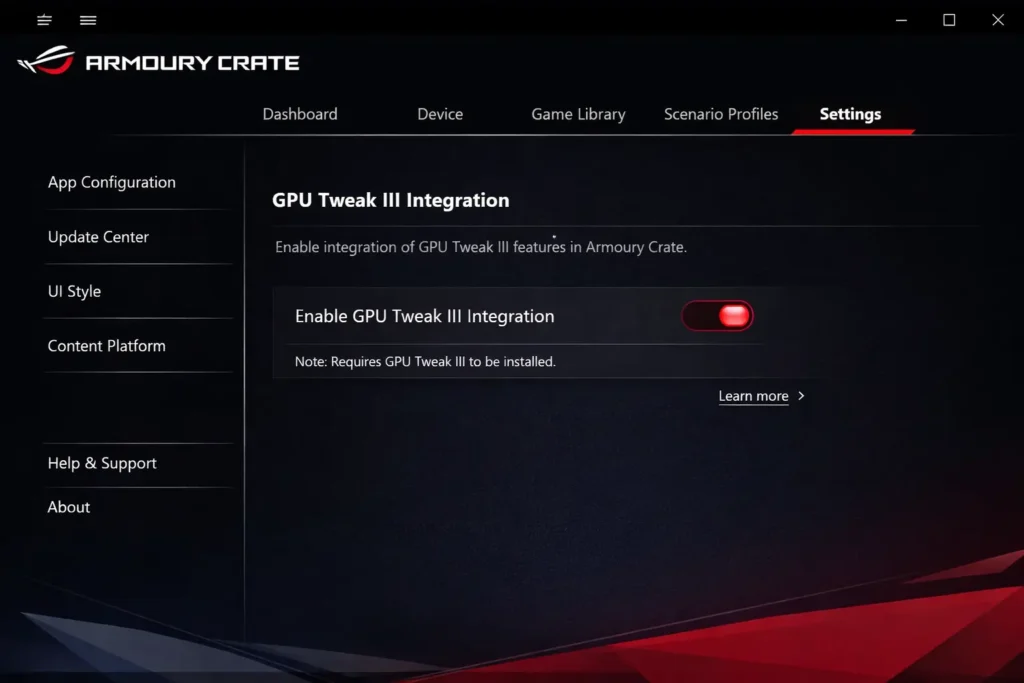
Solution 1: Enable ASUS GPU Tweak III Integration
Armoury Crate requires proper integration with ASUS GPU management services.
Steps:
- Open Armoury Crate → Click Settings (gear icon)
- Go to Device tab
- Scroll to GPU Settings
- Enable “GPU Tweak III Integration”
- Click Apply
- Restart Armoury Crate
What this does: Enables direct communication between Armoury Crate and your GPU through ASUS’s API layer.
Applicable to: ASUS GPUs (ROG Strix, TUF Gaming series) and some third-party GPUs
Solution 2: Run Armoury Crate as Administrator
Permission issues can prevent hardware detection.
Steps:
- Close Armoury Crate completely (check system tray)
- Right-click Armoury Crate icon
- Select Run as administrator
- Check if GPU appears
Make it permanent:
- Right-click Armoury Crate shortcut
- Select Properties
- Go to Compatibility tab
- Check “Run this program as administrator”
- Click OK
Why this works: Administrator rights allow Armoury Crate to access low-level hardware information that’s normally restricted.
Solution 3: Fix Windows Service Dependencies
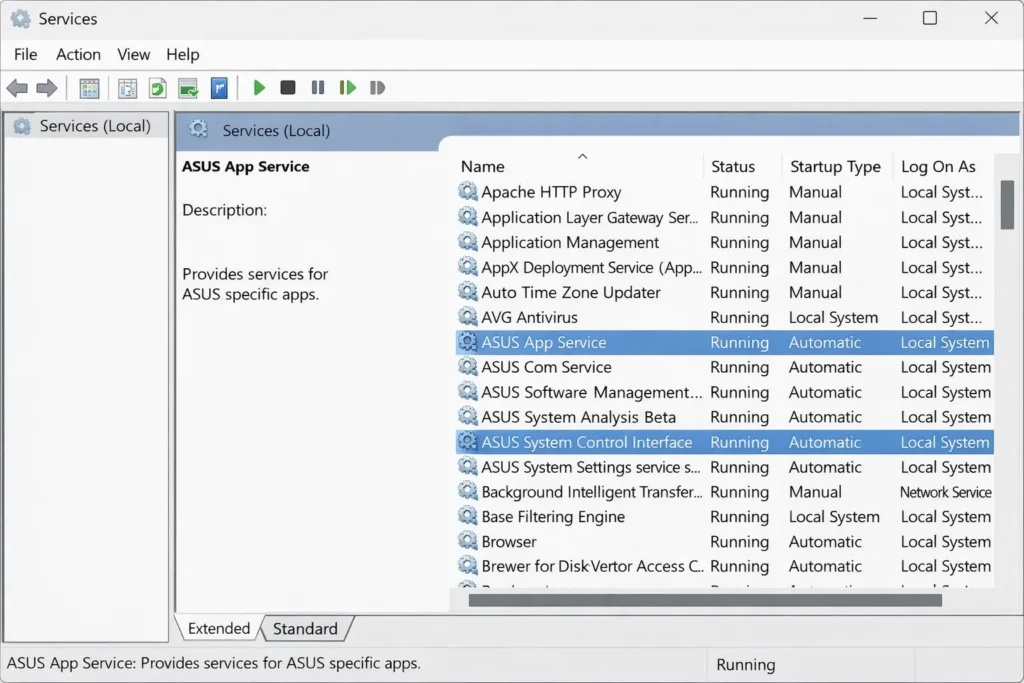
Armoury Crate relies on multiple Windows services. If any are disabled, GPU detection fails.
Services to check:
- Press
Win + R, typeservices.msc - Find and verify these services are Running and set to Automatic:
- ASUS System Control Interface V3
- ASUS Optimization
- Armoury Crate Service
- ASUS Update Service
- LightingService
For each service:
- Right-click → Properties
- Set Startup type to Automatic
- Click Start if not running
- Click OK
- Restart your computer
Common error: If services won’t start, you may need to repair Armoury Crate. See Solution #8.
Solution 4: Update Armoury Crate to Latest Version
Older versions have GPU detection bugs, especially with newer RTX 40-series and RX 7000-series GPUs.
How to update:
Method 1: In-App Update
- Open Armoury Crate
- Click Settings → About
- Click Check for updates
- Download and install
Method 2: Manual Download (Recommended)
- Visit ASUS Armoury Crate Download
- Download latest installer
- Run installer (it will update over existing installation)
- Restart PC
Current version (February 2026): 5.9.x or later
Important: Windows 11 24H2 users must use version 5.8.12 or newer for GPU detection to work.
Solution 5: Check GPU Compatibility with Armoury Crate
Not all GPUs are supported by Armoury Crate. Here’s what works:
Fully Supported:
- ASUS ROG Strix GPUs (all series)
- ASUS TUF Gaming GPUs
- ASUS Dual GPUs
- Integrated GPUs in ASUS laptops (Intel Xe, AMD Radeon)
- NVIDIA GPUs in ASUS ROG laptops
- AMD GPUs in ASUS TUF laptops
Limited Support:
- Non-ASUS branded NVIDIA/AMD GPUs (basic monitoring only, no control)
- Older GTX 900-series and below
- Older RX 400-series and below
Not Supported:
- Intel Arc discrete GPUs (A750, A770) – limited compatibility
- Very old GPUs (pre-2015)
How to check your GPU:
- Press
Win + X→ Device Manager - Expand Display adapters
- Note your GPU model
- Cross-reference with lists above
If unsupported: You can still use Armoury Crate for other components (fans, lighting), but GPU features won’t work. Consider using MSI Afterburner or AMD Adrenalin instead.
Solution 6: Perform a Clean GPU Driver Installation
Corrupted GPU drivers are a major cause of detection failures.
Steps for NVIDIA:
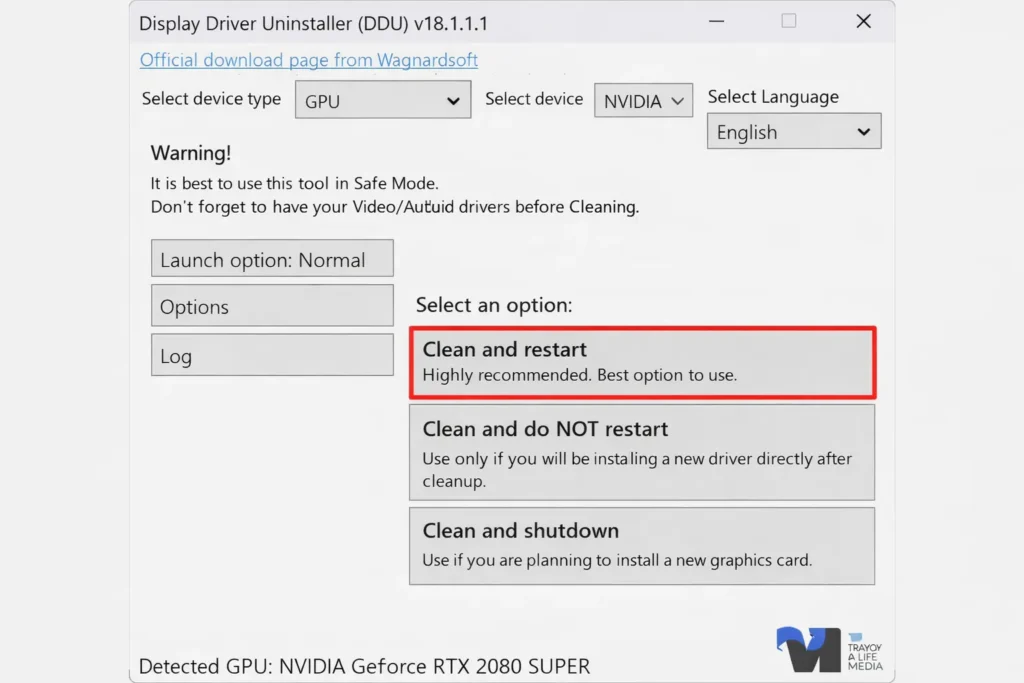
- Download DDU (Display Driver Uninstaller)
- Download latest NVIDIA drivers
- Boot into Safe Mode:
- Settings → Recovery → Advanced startup → Restart now
- Troubleshoot → Advanced options → Startup Settings → Restart
- Press 4 for Safe Mode
- Run DDU → Select NVIDIA → Click Clean and restart
- After restart, install new NVIDIA drivers
- Restart again
- Open Armoury Crate
Steps for AMD:
Same process, but select AMD in DDU and download drivers from AMD Support.
Why this works: Removes leftover driver files that conflict with Armoury Crate’s hardware detection.
Warning: This will temporarily remove display drivers. Download new drivers before starting.
Solution 7: Reset Armoury Crate Configuration
Corrupted configuration files can prevent GPU detection.
Steps:
- Close Armoury Crate completely
- Press
Win + R, type:%LocalAppData% - Find and delete these folders:
ASUSArmouryCrate
- Press
Win + R, type:%ProgramData% - Delete:
ASUSArmouryCrate
- Restart your PC
- Open Armoury Crate (it will regenerate config files)
- Let it detect devices
What this does: Forces Armoury Crate to re-detect all hardware from scratch.
Note: You’ll lose saved profiles and settings. Export them first if needed.
Solution 8: Reinstall Armoury Crate with Armoury Crate Uninstall Tool
If nothing else works, a complete removal and reinstall usually fixes it.
Steps:
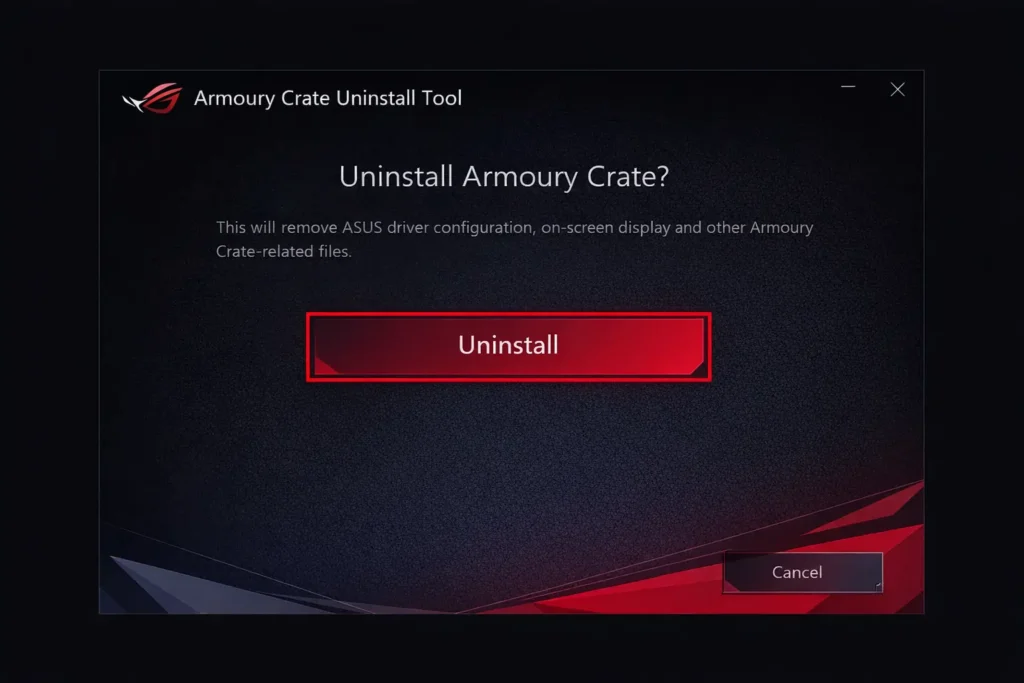
- Download Armoury Crate Uninstall Tool
- Extract and run
Armoury Crate Uninstall Tool.exe - Follow prompts to remove ALL Armoury Crate components
- Restart your PC
- Visit ASUS Armoury Crate Download
- Download latest installer
- Run installer
- Restart again
- Open Armoury Crate → Let it detect devices
Why this is better than normal uninstall: The official tool removes registry entries, services, and hidden components that standard uninstall misses.
Time required: 15-20 minutes
Laptop-Specific Solutions (NVIDIA Optimus / AMD Switchable Graphics)
If you have an ASUS ROG or TUF gaming laptop with both integrated and dedicated GPUs:
Enable Discrete GPU in BIOS
Sometimes the dedicated GPU is disabled at BIOS level.
Steps:
- Restart PC and press F2 or Del repeatedly during boot
- Navigate to Advanced → System Agent Configuration
- Find Graphics Configuration or Primary Display
- Set to PCIE or Discrete Graphics
- Save and exit (F10)
Force Armoury Crate to Use Dedicated GPU
Steps:
- Right-click desktop → NVIDIA Control Panel (or AMD Radeon Settings)
- Manage 3D Settings → Program Settings
- Click Add → Browse to:
C:\Program Files\ASUS\ARMOURY CRATE\ArmoryCrate.Launcher.exe - Set Preferred graphics processor to High-performance NVIDIA processor
- Click Apply
- Restart Armoury Crate
This forces the app to use the dedicated GPU instead of integrated graphics.
Verification: Check If GPU Is Detected
After applying solutions, verify GPU detection:
Method 1: In Armoury Crate
- Open Armoury Crate
- Go to Device tab
- Look for GPU under System or Devices
- You should see GPU temp, usage, and clock speeds
Method 2: Task Manager
- Press
Ctrl + Shift + Esc - Go to Performance tab
- Check GPU – Armoury Crate overlay should appear if detected
Method 3: Armoury Crate Logs
- Open:
C:\ProgramData\ASUS\ARMOURY CRATE\Logs - Open latest log file
- Search for “GPU” – should show “GPU detected successfully”
Also Read: What Are the Best Armoury Crate Alternatives for ASUS Laptops?
Compatibility Check: Supported GPUs
Desktop GPUs
| Brand | Supported Series | Notes |
|---|---|---|
| ASUS NVIDIA | RTX 40/30/20 series, GTX 16 series | Full control (RGB, OC, fans) |
| ASUS AMD | RX 7000/6000/5000 series | Full control |
| Other NVIDIA | RTX 40/30/20, GTX 16 | Monitoring only |
| Other AMD | RX 7000/6000 | Monitoring only |
Laptop GPUs
| Type | Support Level |
|---|---|
| NVIDIA Mobile (RTX/GTX) in ASUS laptops | ✅ Full support |
| AMD Mobile (RX) in ASUS laptops | ✅ Full support |
| Intel Iris Xe / UHD Graphics | ✅ Basic monitoring |
| Intel Arc (A-series) | ⚠️ Limited (compatibility varies) |
Prevent GPU Detection Issues
Keep Armoury Crate Updated:
- Enable auto-updates: Settings → General → Auto-update
Update GPU Drivers Regularly:
- NVIDIA: Use GeForce Experience
- AMD: Use AMD Adrenalin
Don’t Mix GPU Software:
- Avoid running MSI Afterburner + Armoury Crate simultaneously
- Can cause hardware conflicts
Clean Windows Updates:
- Pause updates during gaming sessions
- Test after major Windows updates
GPU Mode Not Showing in Armoury Crate
If you don’t see a GPU Mode option in Armoury Crate at all, this is almost always one of two settings, not a software bug.
Check 1 — BIOS. GPU Mode requires the discrete GPU option to be enabled in BIOS first. Restart your PC, enter BIOS (usually F2 or Del at startup), and confirm the discrete GPU setting is turned on. If it’s set to integrated-only, Armoury Crate has nothing to switch.
Check 2 — MUX switch. Once the BIOS setting is correct, the MUX switch also needs to be toggled inside Armoury Crate itself, under Performance settings. This is what physically routes the display between the integrated and discrete GPU without it toggled, GPU Mode stays hidden even with the right BIOS setting.
FAQ
Why is my GPU not showing in Armoury Crate?
Common causes include outdated Armoury Crate version, missing GPU drivers, or Windows service issues. Try updating Armoury Crate first, then update GPU drivers. If that doesn’t work, restart ASUS services in Windows Services panel.
Does Armoury Crate support non-ASUS GPUs?
Yes, but with limitations. Non-ASUS GPUs (like EVGA, MSI, Gigabyte) are detected for basic monitoring (temps, usage), but you won’t get RGB control, overclocking, or fan curve customization. Full features work only with ASUS-branded GPUs
Can I use Armoury Crate with AMD GPUs?
Absolutely. Armoury Crate fully supports AMD Radeon GPUs in ASUS systems, including RX 7000, 6000, and 5000 series. You’ll get temperature monitoring, usage stats, and game optimization features.
Why does GPU show in Device Manager but not Armoury Crate?
This indicates Armoury Crate’s hardware detection layer isn’t communicating with Windows properly. Try running Armoury Crate as administrator (Solution #2) or restart ASUS services (Solution #3). If problem persists, reinstall Armoury Crate using the official uninstall tool.
My laptop has two GPUs – which one should Armoury Crate detect?
Armoury Crate should detect both your integrated GPU (Intel/AMD) and dedicated GPU (NVIDIA/AMD). In the Device tab, you’ll see both listed. The dedicated GPU will have more controls available. If only one appears, check BIOS settings and ensure both are enabled in Device Manager.
Does disabling integrated graphics help detection?
Not recommended. Modern laptops use integrated graphics for battery savings and dedicated GPU for performance. Disabling integrated graphics can cause display issues. Instead, ensure Armoury Crate is set to use the dedicated GPU in NVIDIA Control Panel or AMD Radeon Settings.
Conclusion
GPU detection issues in Armoury Crate are frustrating but fixable. In most cases, updating Armoury Crate, restarting services, or reinstalling GPU drivers solves the problem.
Quick recap of solutions:
- ✅ Restart Armoury Crate services
- ✅ Update GPU drivers
- ✅ Run as administrator
- ✅ Update Armoury Crate
- ✅ Clean GPU driver install with DDU
- ✅ Reset Armoury Crate config
- ✅ Reinstall with official uninstall tool
- ✅ Check BIOS settings (laptops)
Still having issues? Drop a comment below with your:
- GPU model
- Armoury Crate version
- Windows version
- Error messages (if any)
I’ll help troubleshoot your specific case