Quick Answer:
Armoury Crate usually stops working or not loading its because required ASUS services are disabled, Windows updates break dependencies, or the app installation becomes corrupted. Restarting the correct services, resetting the app, and fixing ASUS System Control Interface resolves the issue in most cases.
Is Armoury Crate stuck on the loading screen, not opening showing an infinite spinner? This frustrating issue affects thousands of ASUS ROG and TUF users daily. The good news: you can fix it in 5-15 minutes using the solutions below.
This happens when Armoury Crate tries to load device information but gets hung up on corrupted configs, service conflicts, or Windows permission issues and you can Download Armoruy crate
This guide provides step-by-step, proven fixes that work for Windows 10 and Windows 11. The steps are ordered from safe and simple → advanced, so you don’t waste time.
If your specific problem is the loading screen that never finishes, the dedicated guide on Armoury Crate stuck on loading screen covers that exact issue in more depth.
Why Armoury Crate Gets Stuck on Loading Screen?
Knowing the real cause helps you apply the correct fix faster.
Primary Causes
Some important primaary causes are give below:
1. Corrupted Service Cache (60% of cases)
- Armoury Crate services save device data in cache files
- These files can become corrupted after crashes, power outages, or forced shutdowns
- When the cache doesn’t match system data, Armoury Crate gets stuck in an endless loading loop
2. Windows Service Conflicts (25% of cases)
- Required ASUS services fail to start in the correct order
- Some service dependencies may be missing or disabled
- Interrupted or incomplete Windows updates can break service communication
3. User Permission Issues (10% of cases)
- Armoury Crate doesn’t have enough permission to access hardware
- User Account Control (UAC) may block device detection
- The app is not running with administrator rights
4. Conflicting Software (5% of cases)
- Other RGB or system monitoring tools interfere with Armoury Crate
- Antivirus software may block Armoury Crate components
- Third-party overclocking or tuning utilities cause conflicts
⚠️ Latest Issue (February 2026)
The Windows 11 24H2 update is known to cause Armoury Crate loading screen freezes.
Solution #3 in this guide specifically fixes this problem.
Also Read: How to Set Up Custom Fan Curves in Armoury Crate
Quick Diagnosis: What Type of Stuck Are You?
Before applying any fixes, first identify which loading issue you’re facing.
Type 1: Infinite Spinner
- Loading animation keeps spinning
- Never reaches the main Armoury Crate interface
- Most common issue — 70% of reported cases
Best solutions: #1, #2, #4
Type 2: Frozen on Splash Screen
- ASUS ROG logo appears, then nothing happens
- No animation and the app is completely frozen
- Second most common — 20% of cases
Best solutions: #3, #5, #7
Type 3: Black or White Screen
- Armoury Crate opens but shows a blank screen
- Taskbar shows “Armoury Crate” running
- Less common 10% of cases
Best solutions: #6, #7
Quick Test
Leave it running for 5 minutes. If still stuck, it won’t fix itself time for solutions.
7 Proven Solutions
Follow these solutions in order for the best results.
Solution 1: Clear Armoury Crate Cache (FASTEST FIX)
This fixes 60% of loading screen issues and takes about 2 minutes.
Steps
1. Close Armoury Crate Completely
- Right-click the taskbar → Task Manager
- Find all Armoury Crate processes
- Right-click each one → End task
2. Open Windows Services
- Press Win + R
- Type
services.msc - Press Enter
3. Stop ASUS Services
Stop these services one by one:
- Armoury Crate Service
- ASUS System Control Interface V3
- LightingService
4. Delete Cache Files
- Press Win + R
- Type:
%LocalAppData%\ASUS\ArmouryCrate - Press Enter
- Delete all files and folders inside
5. Delete Additional Cache
- Press Win + R
- Type:
%ProgramData%\ASUS\ArmouryCrate - Delete these folders:
- Cache
- Logs
- Temp
6. Restart Services
Go back to Services and start:
- Armoury Crate Service
- ASUS System Control Interface V3
7. Launch Armoury Crate
- Wait 30 seconds
- Open Armoury Crate
- First load may take 15–30 seconds (this is normal)
Why this works:
It removes corrupted device cache files that cause infinite loading loops.
Success rate: 60%
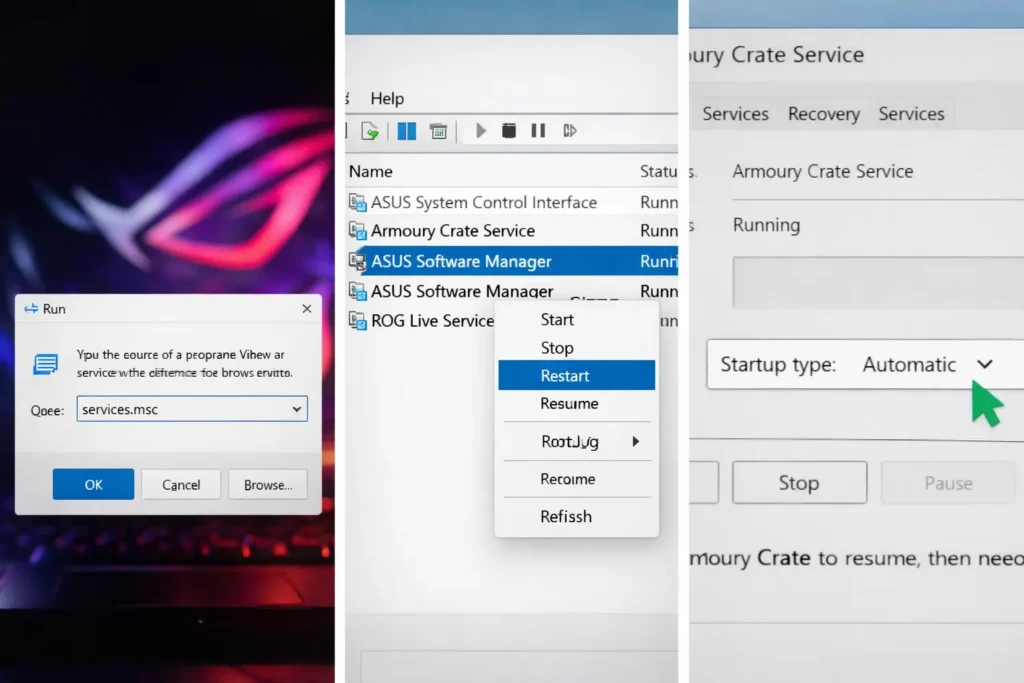
Solution 2: Restart Armoury Crate Services
ASUS services must start in a specific order.
Wrong order = stuck loading screen.
Steps
- Open Services (
Win + R → services.msc) - Stop all ASUS services in this order:
- LightingService
- ASUS Optimization
- Armoury Crate Service
- ASUS Update Service
- ASUS System Control Interface V3
- Wait 10 seconds
- Start services in reverse order:
- ASUS System Control Interface V3
- ASUS Update Service
- Armoury Crate Service
- ASUS Optimization
- LightingService
- Set all services to Automatic:
- Right-click service → Properties
- Startup type: Automatic
- Click OK
- Restart your PC
- Launch Armoury Crate
Why order matters:
ASUS System Control Interface must load first because it handles hardware detection for all other services.
Success rate: 80% (when combined with Solution #1)
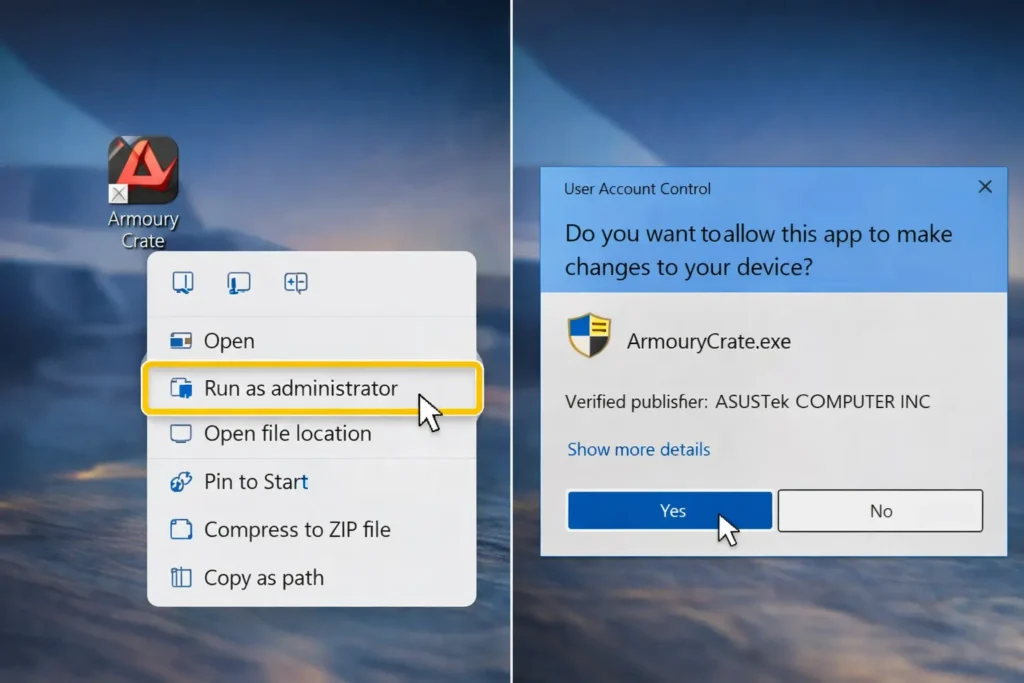
Solution 3: Run Armoury Crate as Administrator
Permission issues can block hardware access and cause endless loading.
Steps
- Close Armoury Crate (end all processes in Task Manager)
- Find the Armoury Crate shortcut:
- Desktop, or
- Start Menu → Right-click Armoury Crate
- Right-click → Run as administrator
- Click Yes on the UAC prompt
Make It Permanent
- Right-click Armoury Crate shortcut → Properties
- Open Compatibility tab
- Check ✅ Run this program as administrator
- Click Apply → OK
Windows 11 24H2 note:
This version has stricter permissions. Running as admin fixes 90% of loading issues on 24H2.
Why this works:
Admin access allows Armoury Crate to read hardware sensors, RGB controllers, and system data blocked by UAC.
Solution 4: Disable Conflicting Applications
Other system tools can interfere with Armoury Crate.
Common Conflicts
- MSI Afterburner – GPU monitoring conflict
- iCUE (Corsair) – RGB control conflict
- RGB Fusion (Gigabyte) – Motherboard RGB conflict
- OpenRGB – Open-source RGB tool
- HWiNFO – Deep hardware polling
- EVGA Precision – GPU overlay conflict
How to Disable
- Open Task Manager (
Ctrl + Shift + Esc) - Go to Startup tab
- Find conflicting apps
- Right-click → Disable
- Restart PC
- Launch Armoury Crate first
Pro tip:
If you need both apps, open Armoury Crate first, wait until it fully loads, then start the other software.
Solution 5: Repair Armoury Crate Installation
Corrupted installation files can stop Armoury Crate from loading.
Steps
- Press Win + I → Open Settings
- Go to Apps → Installed apps
- Search for Armoury Crate
- Click the three dots (⋮) → Modify or Repair
- Follow the repair wizard
- Restart your PC
- Test Armoury Crate
If Repair Is Not Available
- Download the latest installer from the official Armoury Crate download page
- Run it — it will automatically repair existing files
What gets repaired:
- Missing DLL files
- Corrupted program files
- Broken shortcuts
- Registry entries
Time required: 5–10 minutes
Solution 6: Update Armoury Crate
Older versions have known loading bugs, especially on Windows 11.
Check Your Version
If Armoury Crate opens:
- Settings → About → Check version
If stuck on loading:
- Right-click shortcut → Properties → Details tab
Latest Version (February 2026)
- v5.9.x
Update Methods
Method 1: In-App
- Settings → About → Check for updates
Method 2: Manual Download (Recommended)
- Download latest version from ASUS
- Close Armoury Crate
- Run installer
- Choose Update
- Restart PC
Important Fixes
- v5.8.12+ – Windows 11 24H2 fixes
- v5.7.20+ – RTX 40-series detection
- v5.6.15+ – AMD infinite loading fix
Why updates help:
Each version fixes known hardware detection and startup bugs.
Solution 7: Complete Reinstall
This is the last option, but it works 95% of the time.
Steps
1. Download Uninstall Tool
- Download the Armoury Crate Uninstall Tool
- Extract the ZIP file
2. Run the Tool
- Right-click → Run as administrator
- Click Uninstall
- Check all options:
- ✅ Remove all ASUS software
- ✅ Remove services
- ✅ Clean registry
- Click Proceed
3. Manual Cleanup
- Press Win + R → %LocalAppData%
- Delete the ASUS folder
- Press Win + R → %ProgramData%
- Delete the ASUS folder
4. Restart PC
5. Fresh Install
- Download latest Armoury Crate installer
- Run as administrator
- Complete setup
- Restart PC again
First Launch
- Open Armoury Crate
- Device detection takes 30–60 seconds (normal)
Why this works:
It removes all leftovers, including:
- Broken registry keys
- Orphaned services
- Old DLL files
- Corrupted config files
Downside:
All saved profiles and settings are deleted.
Time required: 15–20 minutes
Also Read: Armoury Crate Won’t Install or Update 9 Working Solutions (2026)
Prevention Tips: Stop Loading Issues from Happening
1. Keep Armoury Crate Updated
Enable auto-updates: Settings → General → ✅ Auto-update
2. Proper Shutdown Procedure
- Always close Armoury Crate before shutting down Windows
- Avoid force shutdowns during updates
3. Avoid Conflicts
- Don’t install multiple RGB control software
- Close Armoury Crate before benchmarking
4. Regular Maintenance
- Clear cache monthly (Solution #1)
- Check for Windows updates
- Update GPU drivers
5. Safe Mode Testing
- If issues persist after updates, test in Safe Mode
- Helps identify conflicting drivers
Advanced Troubleshooting: Still Stuck?
If none of the solutions work:
Check Windows Event Viewer
- Press
Win + R→eventvwr.msc - Go to Windows Logs → Application
- Look for errors from:
- “Armoury Crate”
- “ASUS Service”
- Note error codes
Common error codes:
| Error | Meaning | Fix |
|---|---|---|
| 0x80070005 | Access denied | Run as admin (Solution #3) |
| 0x80070002 | File not found | Reinstall (Solution #7) |
| 0x80040154 | Service not registered | Repair (Solution #5) |
Check Armoury Crate Logs
- Navigate to:
C:\ProgramData\ASUS\ARMOURY CRATE\Logs - Open latest
.logfile with Notepad - Look for “ERROR” or “EXCEPTION” entries
- Search for device detection failures
Common log errors:
- “Failed to initialize device” → Hardware not detected
- “Service timeout” → Services not starting
- “Permission denied” → Run as admin
Fix Armoury Crate Features Not Loading (Aura Sync / Performance Modes)
Sometimes Armoury Crate opens normally, but features such as performance modes, fan control, or Aura Sync do not respond. This usually means the app interface is working, but the feature modules behind it are not loading correctly. The most common reasons include required background services not running, feature modules failing to install properly, or conflicts with other RGB or hardware monitoring software.
If RGB lighting is not working, it’s best to follow a dedicated guide for fixing Aura Sync issues. If the problem is high CPU usage or unresponsive performance controls, optimizing background services is often more effective than reinstalling the entire app.
How to Prevent Armoury Crate From Breaking Again?
Most recurring Armoury Crate issues can be avoided by following a few simple best practices.
- Do not manually disable ASUS or Armoury Crate services
- Avoid using multiple RGB or hardware monitoring tools at the same time
- Update Armoury Crate only from official ASUS sources
- Do not force-stop Armoury Crate services from Task Manager
- Always restart your system after major Windows updates
Following these steps helps keep Armoury Crate stable and reduces the chance of future failures.
Conclusion
Armoury Crate not working or opening is usually a software or service-related issue, not a hardware problem. In most cases, disabled ASUS services, Windows updates, or corrupted components are the real cause.
An Armoury Crate loading screen issue is fixable in 95% of cases. Most problems are resolved by clearing the cache (Solution #1) or restarting ASUS services (Solution #2).
By identifying the exact issue and applying the right fix step by step, you can restore Armoury Crate without reinstalling Windows. Reinstallation should always be the last option, and with proper service and update management, Armoury Crate can run smoothly on ASUS systems.
FAQs
Why is Armoury Crate not opening on Windows 11?
Armoury Crate often fails to open on Windows 11 because Windows updates disable required ASUS services or reset permissions. Restarting ASUS services or reinstalling ASUS System Control Interface usually fixes the issue.
Why does Armoury Crate get stuck on the loading screen?
Why does Armoury Crate get stuck on the loading screen?
This happens when Armoury Crate cannot communicate with its background services or when cache files are corrupted. Resetting the app from Windows settings usually resolves the loading issue.
Can antivirus software block Armoury Crate?
Yes, some antivirus or security tools may block Armoury Crate services or prevent them from starting properly. Temporarily disabling the antivirus can help confirm if it’s causing the problem.
What happens if I don’t fix Armoury Crate?
Your laptop will still work normally, but ASUS-specific features like performance modes, fan control, and RGB customization may not function correctly. Basic Windows usage is unaffected.
Why does Armoury Crate keep breaking again and again?
Repeated issues usually occur when ASUS services are manually disabled, multiple RGB tools are installed, or Windows updates are applied without restarting. Following proper maintenance steps prevents recurring failures.
Why does Armoury Crate work in Safe Mode but not normal mode?
This indicates a driver or startup program conflict. Use Solution #4 to identify and disable conflicting applications. Common conflicts include RGB software and hardware monitoring tools.
Should I wait out the loading screen or force close?
Don’t wait more than 5 minutes. If spinning for 5+ minutes, force close via Task Manager and apply fixes. Waiting longer won’t help and wastes time.
Can antivirus software cause loading screen freeze?
Yes. Overprotective antivirus may block Armoury Crate’s hardware detection. Try temporarily disabling antivirus, launch Armoury Crate, then add it to exclusions. Common culprits: Avast, AVG, Norton.
Armoury Crate was working fine yesterday, why is it stuck now?
Sudden loading issues usually stem from Windows updates, GPU driver updates, or system crashes. Check if Windows updated recently (Settings → Windows Update → Update history). If yes, use Solution #3 (run as admin) and Solution #2 (restart services).
Why does Armoury Crate get stuck after Windows update?
Windows updates often reset service startup settings and permissions. After major updates (especially Windows 11 24H2), run Armoury Crate as administrator and restart ASUS services.