Quick Answer
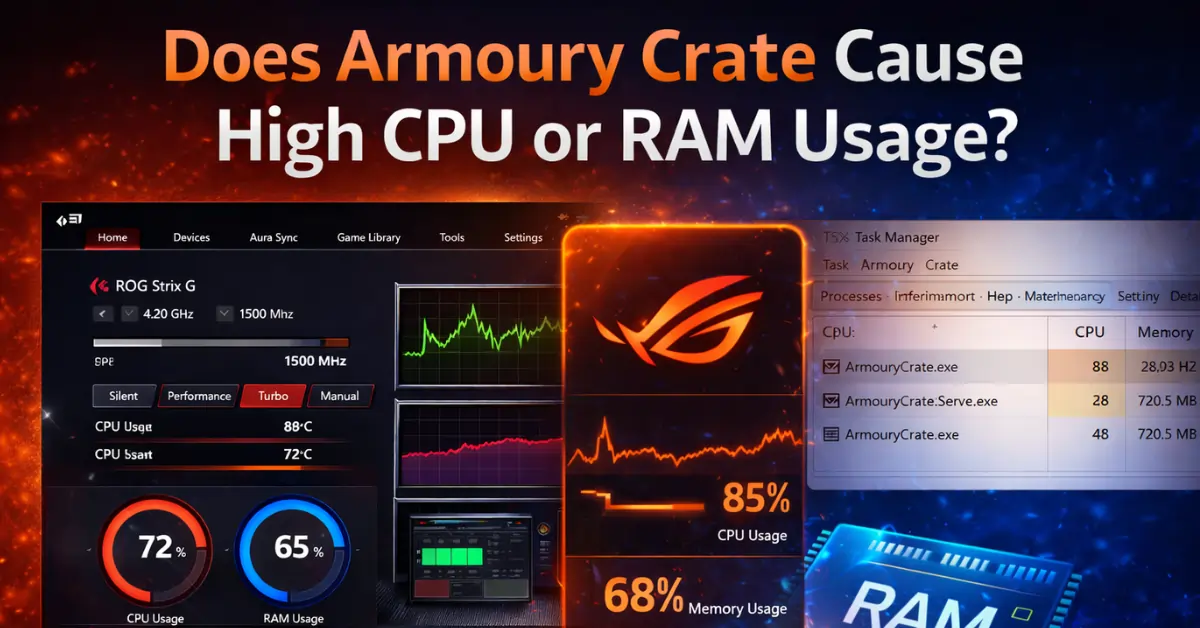
Armoury Crate uses more CPU and RAM than it should when its background services, RGB lighting effects, device syncing, and update checks all run at once, and you can bring it back down by restarting the services cleanly, switching animated lighting to static, trimming the services and startup entries you do not need, and turning off automatic update checks. Brief spikes while the app scans hardware or installs an update are normal, but usage that stays high while the system sits idle is a sign that one of those background pieces is stuck.
What Counts as Normal Usage?
Armoury Crate is a suite of services rather than one small program, so it will never be invisible in Task Manager, and the exact numbers vary with how many ASUS devices you have connected. What matters is the pattern:
- Normal: short climbs during startup, device detection, or an update, then it settles down and sits quietly at idle.
- A problem: CPU that stays busy when nothing is happening, or RAM that keeps creeping upward the longer the PC stays on.
Both problem signs point to a service working in a loop instead of resting, and the fixes below are ordered to calm that loop down.
Why Does Usage Climb?
Several things quietly add up in the background:
- Multiple ASUS services start with Windows and stay resident so modes, fan curves, and lighting respond instantly.
- Every connected keyboard, mouse, or headset adds its own polling and sync work.
- Animated RGB effects cost steadily, because the lighting service refreshes colors continuously.
- Automatic update checks wake the app up in the background even when you never open it.
- Windows Fast Startup resumes services from a saved state instead of starting them cleanly, and a service that resumes badly can retry hardware initialization over and over.
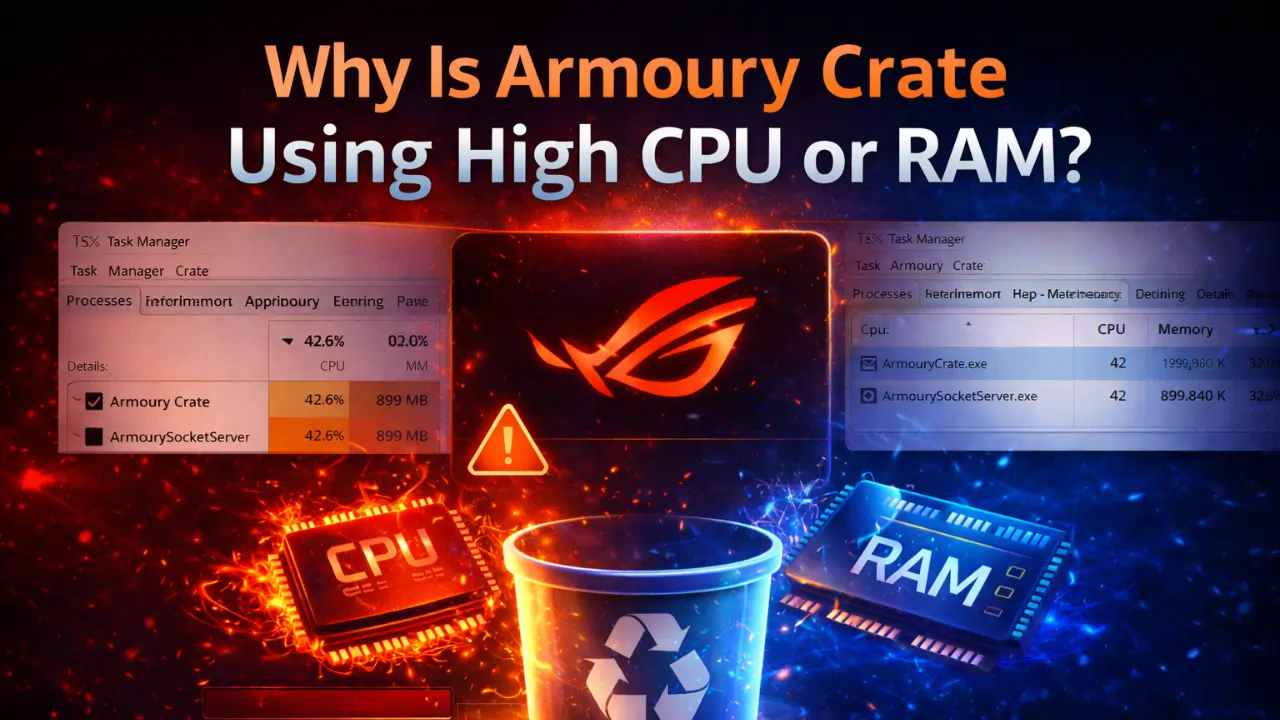
Fix 1: Restart the Services Cleanly
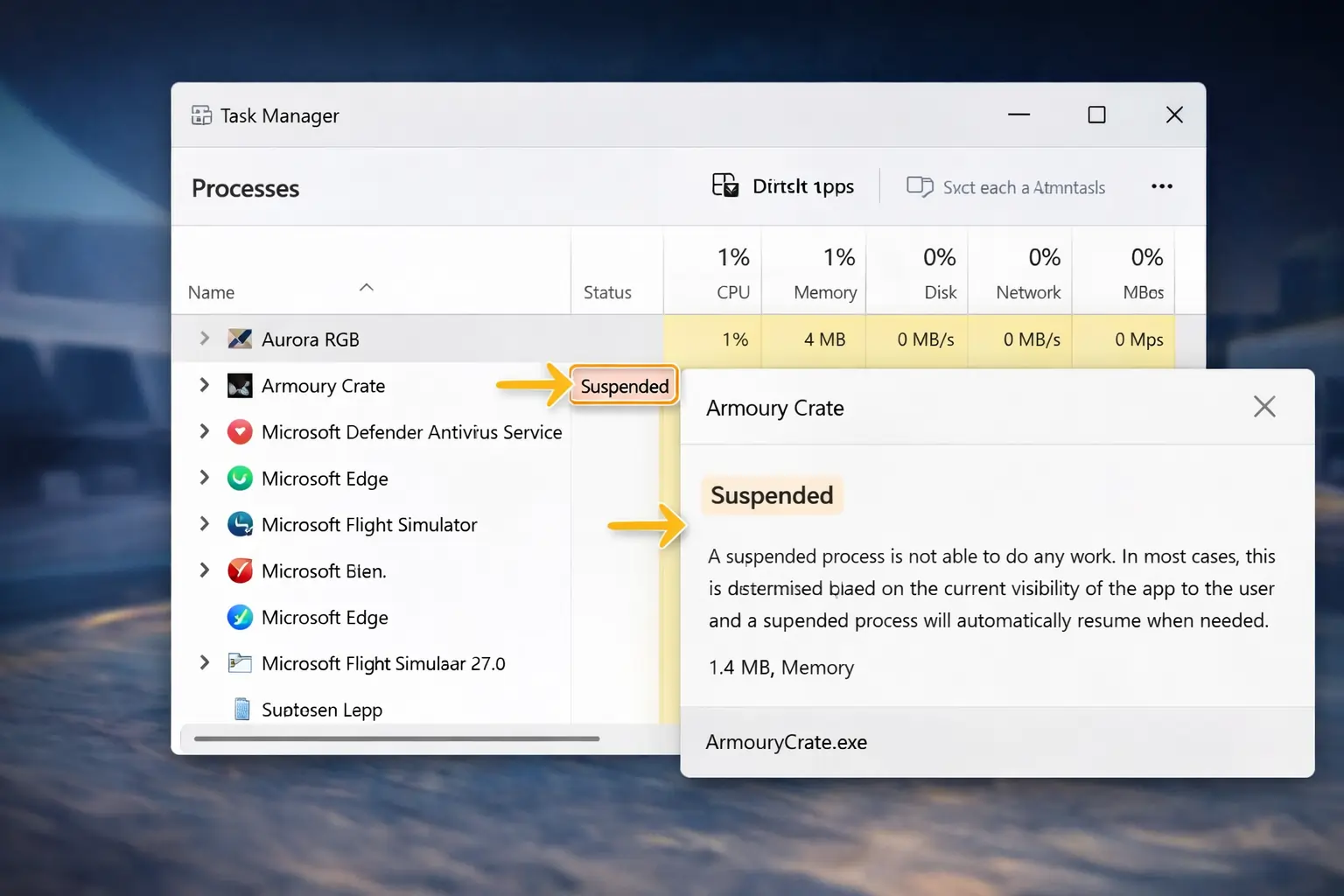
End the Armoury Crate processes in Task Manager, then restart your PC and open the app once so the services load in their proper order. This clears a service that got stuck mid-task, which is the simplest explanation for usage that was fine yesterday and high today. If the numbers settle afterward, nothing deeper is wrong.
Fix 2: Switch RGB Effects to Static or Off
Open Armoury Crate and set your lighting to a static color, or turn it off entirely for a day, then compare the CPU column in Task Manager. Animated and reactive effects force the LightingService to recalculate constantly, and the cost grows with every RGB device attached. Static lighting keeps the look without the continuous work, and it is the single biggest saver for most systems.
Fix 3: Trim Startup Entries and Optional Services
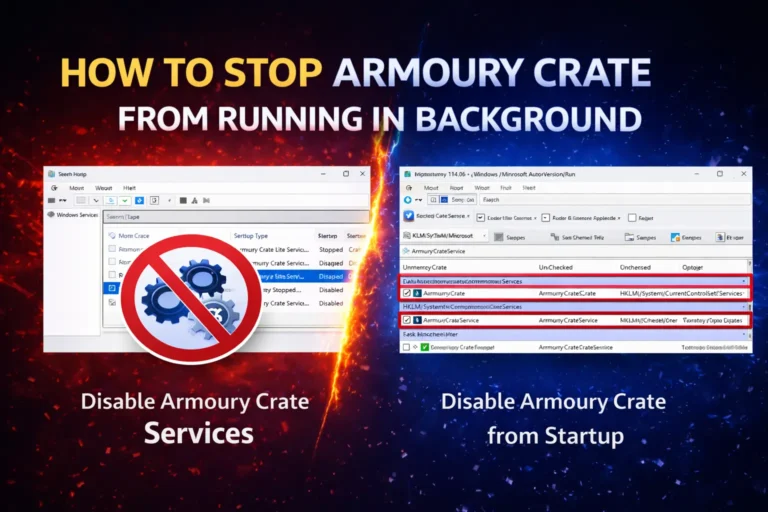
Open the Startup tab in Task Manager and disable the ASUS entries you do not need at boot, and in services.msc set optional services such as ROG Live Service and GameFirst to Manual, keeping Armoury Crate Service and ASUS System Control Interface V3 running because core control depends on them. If your real goal is for the app to stay out of the way until you open it yourself, our guide on stopping Armoury Crate from running in the background walks through that setup properly.
Fix 4: Turn Off Automatic Update Checks
Inside Armoury Crate settings, disable the options to check for and download updates automatically, and check manually every few weeks instead. Update checks are a classic source of random CPU and RAM spikes that seem to come from nowhere, and manual checking loses you nothing because Armoury Crate updates are rarely urgent.
Fix 5: Disable Windows Fast Startup
Open Control Panel, then Power Options, then Choose what the power buttons do, and turn off Fast Startup. With it disabled, every shutdown is a real shutdown, so Armoury Crate services start fresh at each boot instead of resuming in a half broken state that can loop. Boot takes slightly longer, but it removes a whole category of weird service behavior.
Fix 6: If RAM Keeps Growing Over Hours
When RAM usage climbs steadily during long sessions rather than spiking, the lighting process is the usual suspect, because LightingService can hold on to memory instead of releasing it. Press Win + R, open services.msc, right-click LightingService, and choose Restart, which drops its memory back down immediately without a reboot. If you do not use RGB at all, set its startup type to Manual instead, and it will only run when something actually asks for lighting.
Fix 7: Reinstall the Driver Layer, Then the App
If usage stays high after everything above, reinstall ASUS System Control Interface from your model’s ASUS support page, because a corrupted driver layer makes the services retry constantly. Should that fail too, remove Armoury Crate completely with the official uninstall tool and install it fresh, since a clean installation resets services that in-place repairs sometimes miss.
Does It Affect Gaming and Battery Life?
Yes, when usage is genuinely high. Background work competes with your game for CPU time, which shows up as less stable frame rates on mid range and older laptops, and services that never sleep keep sipping power on battery even when the app is closed. We break down the gaming and battery side in detail in our test of whether Armoury Crate drains battery life.
FAQs
Does Armoury Crate slow down Windows startup?
It can, because several services and startup entries load with Windows and immediately begin device detection. Disabling the startup entries you do not need and launching the app manually removes most of that cost.
If I close the Armoury Crate window, does usage drop to zero?
No. Closing the window only closes the interface, while the services keep running in the background to maintain modes, fans, and lighting. Real savings come from trimming services and effects, not from closing the app.
Is it safe to set ASUS services to Manual?
Yes for the optional ones, because Manual services start when a feature needs them. Keep Armoury Crate Service and ASUS System Control Interface V3 on Automatic, since hardware control depends on those two.
Should I just uninstall Armoury Crate?
Only if you do not use performance modes, fan control, or RGB. The fixes above tame the usage for most people while keeping the features, so try them first and uninstall only if the cost still outweighs the benefit for you.
Conclusion
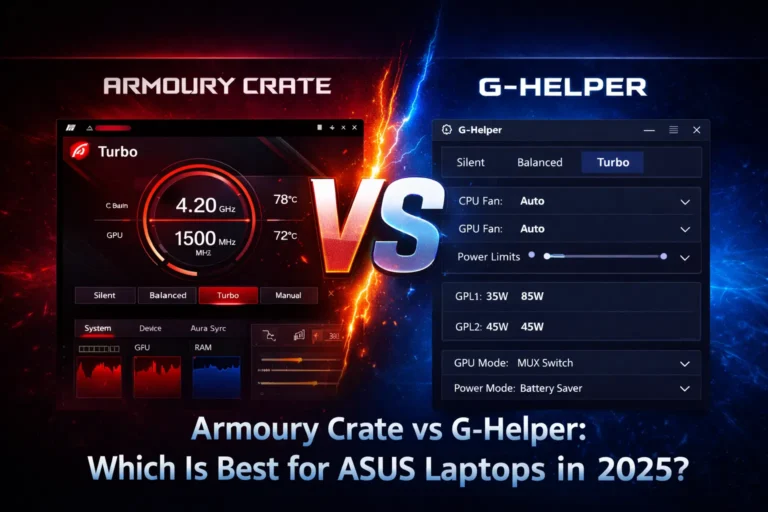
High CPU and RAM usage from Armoury Crate is a background load problem, and it responds to background fixes: calm the lighting, trim the services, and stop the update checks. If you reach the point where even a trimmed Armoury Crate feels too heavy for your laptop, our Armoury Crate vs G-Helper comparison shows what the lightweight alternative covers and what it leaves behind.