
Quick Answer
To stop Armoury Crate from running in the background, disable its startup entries in Task Manager, then set its Windows services to Disabled in services.msc. This cuts RAM usage, speeds up boot, and extends battery life. You lose automatic RGB, performance profiles, and fan control until you re-enable it, but you can still open the app manually whenever you want.
Why Does Armoury Crate Run in the Background?
Armoury Crate is built around “always-on” control. Its background services (Armoury Crate Service, ASUS Optimization, lighting services for Aura Sync, and update agents) keep performance profiles, fan curves, RGB effects, and driver checks active without you opening the app. On a gaming laptop that is the intended experience. But if you never touch those features, those same services are just consuming memory, CPU cycles, and battery for nothing.
Method 1: Disable Startup Entries
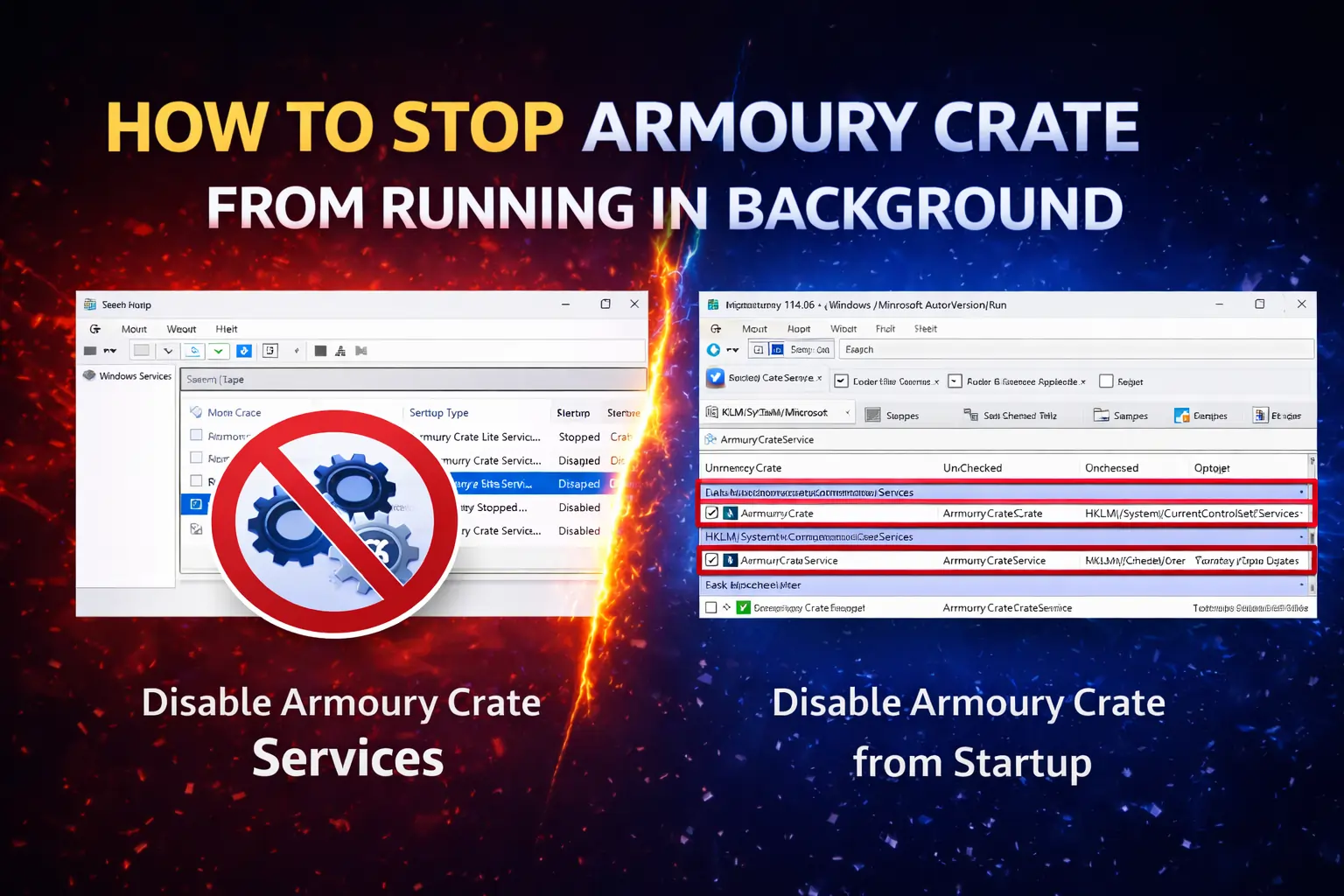
This stops Armoury Crate from launching when Windows boots. Open Task Manager with Ctrl + Shift + Esc, switch to the Startup apps tab, and disable every entry tied to Armoury Crate or ASUS utilities. Restart once and confirm nothing ASUS-related launches on its own. This is the easiest step and enough for many users, but background services can still wake the app, which is why Method 2 matters.
Method 2: Disable the Windows Services (Most Effective)
Services are what keep Armoury Crate alive behind the scenes, so this is the step that actually stops it. Press Windows + R, type services.msc, and locate the Armoury Crate and ASUS entries, typically Armoury Crate Service, ASUS Optimization Service, and lighting-related services. Double-click each one, click Stop, then set Startup type to Disabled.
Be precise here: only disable entries clearly tied to Armoury Crate or ASUS utilities. Leave audio, display, networking, and chipset services untouched, because disabling the wrong service can break sound or Wi-Fi. When in doubt about a service name, look it up before touching it.
Method 3: Turn Off Auto-Start Inside the App
If Armoury Crate still opens normally, launch it, open Settings, and switch off “Start with Windows,” “Run in background,” or similarly worded options. This is the cleanest method because the app shuts down its own services properly. For a complete stop, combine it with Method 2, since the in-app toggle does not always catch every background service.
What Changes After You Disable It?
Boot gets faster, idle RAM usage drops noticeably, and battery life improves on laptops. What you give up: automatic performance profiles, RGB lighting effects, custom fan curves, and the monitoring dashboard running silently. Your laptop will not overheat. Cooling falls back to BIOS and Windows defaults, which keep temperatures within safe limits. You only lose the ability to customize the cooling behavior.
The practical middle ground many users settle on: services disabled, app opened manually only when they want to change a setting or check temperatures. Everything works normally while the app is open.
Can You Turn It Back On?
Yes, in under a minute. Set the services back to Automatic in services.msc and re-enable the startup entries in Task Manager. Nothing was uninstalled, so your profiles, lighting setups, and fan curves return exactly as they were. If you decide you want it gone entirely instead of just quiet, uninstall Armoury Crate completely.
FAQs
Is it safe to disable ASUS services permanently?
Yes, provided you only disable Armoury Crate and ASUS utility services, never audio, display, networking, or system drivers. Windows runs perfectly well without the ASUS extras.
Will my laptop overheat without Armoury Crate running?
No. The BIOS and Windows manage fans and thermal limits independently of Armoury Crate. You lose custom fan curves and manual control, not the underlying protection.
Why does Armoury Crate show as “Suspended” in Task Manager?
Windows automatically suspends UWP apps it is not actively using. A suspended entry is using almost no resources, so it is normal and not a problem to fix.
Can Armoury Crate come back after a Windows update?
Windows Update itself does not reinstall it, but ASUS utilities like MyASUS can restore ASUS apps during their own updates. If Armoury Crate keeps returning, open MyASUS, check its app-update settings, and disable automatic installation of ASUS software.
Can I enable Armoury Crate only for gaming sessions?
Yes, that is the best of both worlds. Keep the services disabled, and launch the app manually before gaming to apply your performance profile and fan curve, then close it afterward.