

Quick Answer:
Use the official ASUS Uninstall Tool to completely remove Armory Crate from your system. Download the tool, run it as administrator, and restart when prompted. This removes all files and background services.
You can completely uninstall ArmouryCrate safely by using the official ASUS uninstall tool or a clean manual removal method without damaging your ASUS laptop or PC.
This guide explains the safest ways to remove Armoury Crate, what happens after uninstalling, and how to stop it from reinstalling automatically.
Why Users Want to Completely Uninstall Armoury Crate?
Many users uninstall Armoury Crate because it runs background services continuously and consumes system resources.
Common reasons include high RAM usage, slower boot times, reduced battery life, and not needing RGB or advanced performance features.
Users who prefer lightweight systems or manual control often find ArmoryCrate unnecessary for daily use.
Is It Safe to Uninstall Armoury Crate?
Yes, it is safe to uninstall Armoury Crate. Your ASUS laptop or desktop will continue to function normally after removal.
Core features like cooling, charging, CPU and GPU operation, and Windows power management remain active because they are controlled by BIOS and system drivers.
Only Armoury Crate-specific features such as RGB lighting control, automatic performance profiles, and ASUS peripheral management stop working.
Things to Know Before Uninstalling Armoury Crate
Before uninstalling Armory Crate, understand which features will stop working and how to prevent it from reinstalling automatically. This helps you avoid confusion and ensures a smooth removal process.
Method One: Uninstall Armoury Crate Using the Official Tool (Recommended)
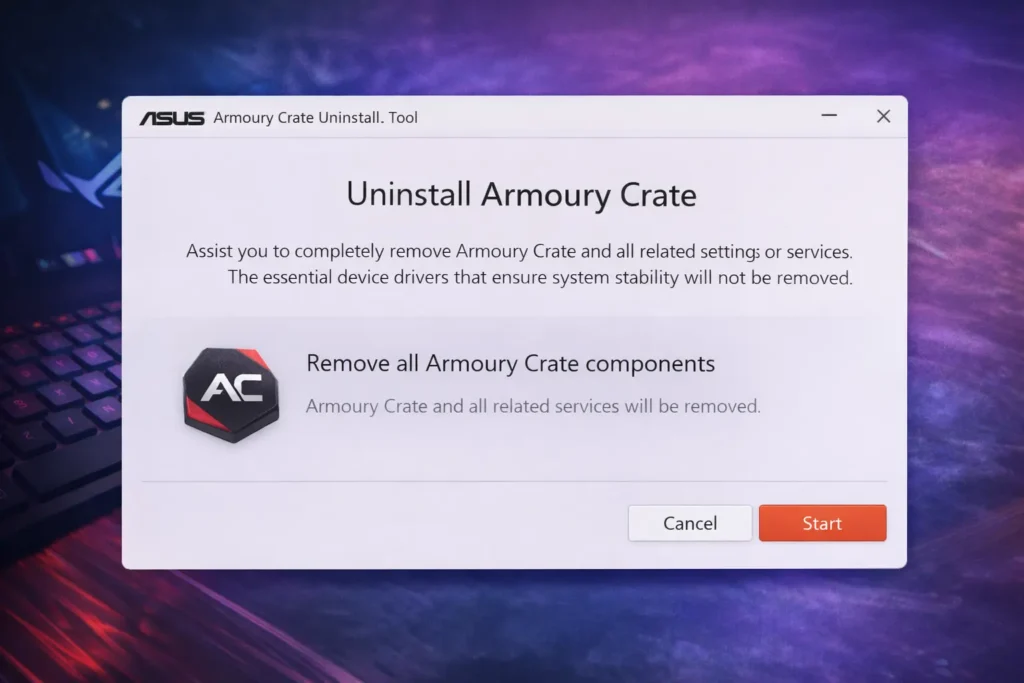
The official ASUS uninstall tool is the safest and cleanest way to remove Armoury Crate completely.
What Is the Armoury Crate Uninstall Tool?
ASUS provides an official utility designed to remove Armoury Crate and all related components.
It safely deletes services, background processes, and leftover files that manual uninstall often misses.
How to Use the Official Uninstall Tool?
Download the Armoury Crate Uninstall Tool from the ASUS support website for your device model.
Run the tool as administrator, follow the on-screen instructions, and restart your system when prompted. After reboot, Armoury Crate will be fully removed and no background services will remain active.
Also Read: Armoury Crate Won’t Install 9 Working Solutions
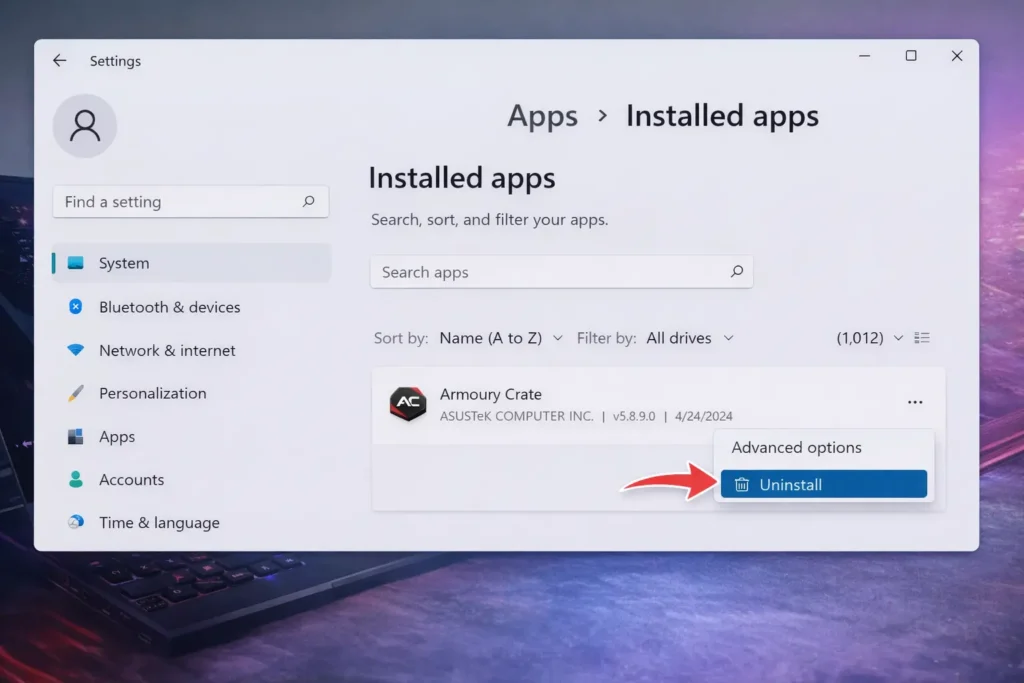
Method Two: Manual Uninstall Through Windows Settings
Manual uninstall is useful if the official tool fails or is unavailable. This method removes Armoury Crate directly from Windows. It requires careful removal of related ASUS components to avoid leftover background services.
What Happens After Uninstalling Armoury Crate?
After uninstalling, users typically notice faster boot times and lower RAM usage. Battery life often improves on laptops because background services stop running. RGB lighting returns to default behavior, and custom fan curves revert to BIOS control.
Performance remains stable, though automatic mode switching is no longer available.
Why Does Armoury Crate Reinstall Automatically After Uninstalling?
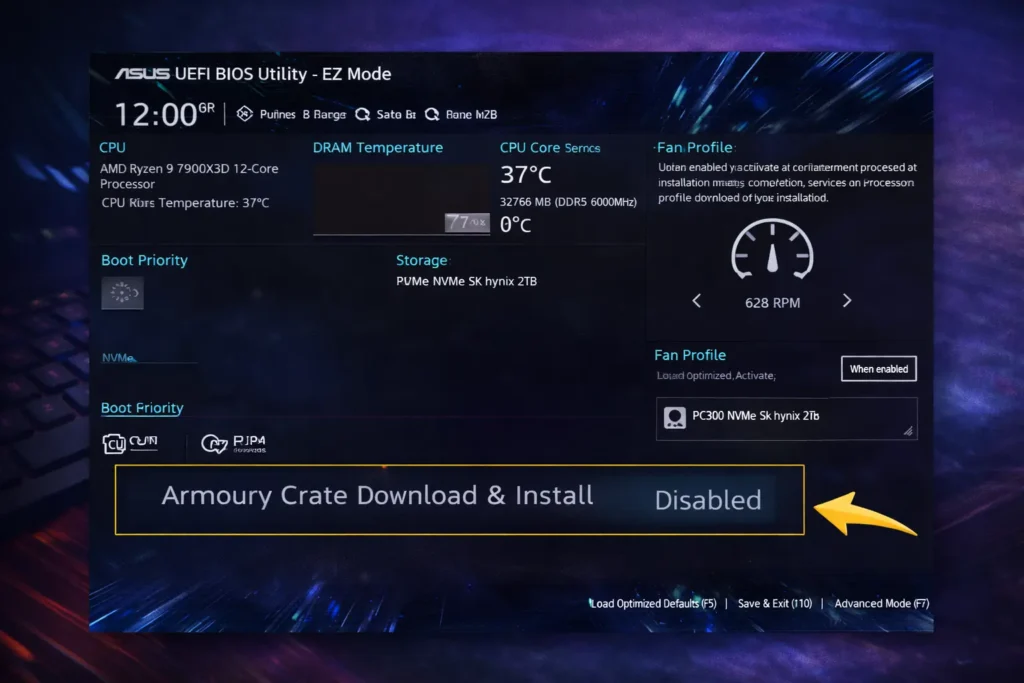
Some ASUS laptops automatically reinstall Armoury Crate even after removal.
This happens because a BIOS option called Armoury Crate is enabled by default. Enter the BIOS during startup and disable this option to stop automatic reinstallation. This step is essential for permanent removal of Armoury Crate.If AsusBackupWMI is still appearing in Task Scheduler after uninstalling, see our guide on disabling AsusBackupWMI
If after reinstalling Armoury Crate you see a loading screen that does not finish, that is a services issue not an installation problem the loading screen fix guide explains what to do.
How to Disable AsusBackupWMI in Windows
After uninstalling Armoury Crate or even while it is still installed many users notice a task called AsusBackupWMI appearing in Windows Task Scheduler. This is not malware. It is a scheduled task that Armoury Crate creates during installation to back up ASUS system settings.
The task runs automatically at startup and on a schedule. Most users never notice it but it can show up in Task Manager as a background process consuming CPU and it runs even after you think you have closed Armoury Crate completely.
How to disable AsusBackupWMI permanently
Open Task Scheduler. Press Win and R together, type taskschd.msc and press Enter.
In the left panel click Task Scheduler Library. Look through the list for AsusBackupWMI. It may also appear inside an ASUS subfolder click the arrow next to Task Scheduler Library and look for an ASUS folder.
Right click AsusBackupWMI and select Disable. The task will no longer run at startup or on schedule.
If you want to delete it entirely right click and select Delete. Deleting it is safe if you have already uninstalled Armoury Crate or plan to.
What happens after disabling it
Your system continues working normally. Armoury Crate features are not affected by disabling this task if Armoury Crate is still installed. The task only handles background setting backups which most users do not need.
If you are doing a full clean uninstall of Armoury Crate the official Uninstall Tool removes this task automatically. You only need to disable it manually if the task persists after uninstalling or if you want to disable it without removing Armoury Crate entirely.
How to disable AsusBackupWMI from startup only
If you want to prevent it running at startup without deleting the task entirely go to Task Manager, click the Startup tab, find AsusBackupWMI in the list and right click then select Disable. This stops it from launching when Windows starts while keeping the task available if you ever need to run it manually.
Can I delete AsusBackupWMI safely
Yes. Deleting AsusBackupWMI does not damage your system or break Armoury Crate features. It only removes the scheduled backup task. If you reinstall Armoury Crate in future the task will be recreated automatically.
Best Alternatives After Uninstalling Armoury Crate
Users who still want basic hardware control can use lighter alternatives.
G-Helper is a popular option for ASUS laptops, offering performance modes and fan control without background services.But there are alot more Best Armory Crate Alternatives for ASUS Laptops too like MSI Afterburner.
For monitoring only, tools like Windows Task Manager or HWiNFO provide temperature and usage data with minimal resource usage.
Common Problems After Uninstalling Armoury Crate
After uninstalling Armoury Crate, some ASUS-specific features may stop working or behave differently. These issues are common and do not affect core system stability or hardware safety.
Keyboard backlight stop working
Some ASUS laptops rely on Armoury Crate services for advanced keyboard lighting or brightness control, which may revert to default behavior after uninstall.
Performance modes are no longer available
Silent, Performance, and Turbo modes disappear, and the system falls back to standard Windows power plans instead of ASUS-optimized profiles.
When You Should Not Uninstall Armoury Crate?
Do not uninstall Armoury Crate if you use RGB lighting across multiple ASUS devices and want everything synced automatically. Keep it installed if you rely on automatic performance modes for gaming or heavy work.
Users with ASUS keyboards, mice, or other peripherals may lose important controls after uninstalling. In these cases, stopping background services is a safer and better option than removing the software completely.
Also Read: Armoury Crate Lite vs Full Which One Is Right for You?
Conclusion
Uninstalling Armoury Crate is safe and effective for users who want better performance, lower resource usage, and longer battery life.
By using the official uninstall tool and disabling BIOS auto-install, you can remove it completely without harming your system.
If you need full ASUS features, keep Armoury Crate or limit its background activity.
If you prefer simplicity and speed, uninstalling Armoury Crate is the right choice.
Frequently Asked Questions
Does uninstalling Armoury Crate affect Windows performance updates?
No, removing Armoury Crate does not interfere with Windows updates or system security patches.
Can Armoury Crate uninstall cause overheating issues?
No, fan control and thermal protection continue working through BIOS even after uninstalling Armoury Crate.
Will uninstalling Armoury Crate reset BIOS settings?
No, uninstalling the software does not change or reset BIOS configurations.
Does uninstalling Armoury Crate remove all ASUS services?
Only Armoury Crate–related services are removed; essential ASUS system drivers remain active.
Is Armoury Crate needed for keyboard function keys?
Basic function keys work without Armoury Crate, but advanced lighting shortcuts may not.
Can Windows Defender or antivirus block Armoury Crate uninstall?
No, Armoury Crate uninstall tools are safe and not blocked by Windows Defender.
Is it better to disable Armoury Crate instead of uninstalling?
Disabling is better if you occasionally use ASUS features; uninstalling is better for permanent removal.
Can Armoury Crate be installed again after a clean uninstall?
Yes, it can be reinstalled anytime from the official ASUS website.