
Quick Answer:
Yes, Armoury Crate can reduce FPS in some situations but not always.
On many systems, ASUS Armoury Crate runs normally and does not directly lower FPS. However, background services, RGB effects, power profiles, and poor configuration can indirectly cause FPS drops or stuttering, especially on laptops and lower-end hardware.
Many gamers wonder whether Armoury Crate affects FPS. The truth is that performance impact depends on your system and settings. While Armoury Crate is meant to manage performance and cooling, unnecessary background activity or incorrect modes can turn it into a performance issue.
This guide briefly explains when FPS drops happen, how to check if Armoury Crate is the cause, and how to optimize it for smooth gaming, based on global user experience and you can also Update Armory crate
What Is Armoury Crate?
ArmouryCrate is ASUS’s system control software designed for gaming laptops and desktops. It allows gamers to manage performance and power modes, control fan curves and thermals, customize RGB lighting through Aura Sync, and handle game profiles and system updates from one place. Most ASUS gaming systems come with Armoury Crate preinstalled, making it a central hub for performance tuning, cooling control, and visual customization.
How Armoury Crate Can Reduce FPS (Real Reasons)
Armoury Crate itself does not directly lower FPS, but its background activity and incorrect settings can affect gaming performance. These issues are more noticeable on laptops and lower-end systems where CPU, RAM, and power limits are already tight.
Background Services & Startup Load
Armoury Crate runs multiple monitoring and profile services in the background. On systems with limited resources, these services can compete with games, causing micro-stutters or reduced average FPS.
RGB (Aura Sync) Overhead
RGB effects are lightweight on their own, but continuous animations and polling can add extra load. This becomes noticeable on older CPUs or when several background apps are running.
Auto Updates & Telemetry
Armoury Crate may check for updates or send telemetry silently in the background. These actions can create short CPU spikes, leading to inconsistent frame pacing during gameplay.
Power Profiles Misconfiguration
Using Silent or Balanced mode while gaming can limit CPU and GPU power. This prevents the hardware from boosting properly, resulting in lower sustained FPS than the system is capable of.
When Armoury Crate Does NOT Reduce FPS?
Armoury Crate usually has little to no impact on FPS when the system has enough resources and is configured correctly. In many cases, it can even help maintain stable performance.
High-End Desktops
Powerful CPUs and ample RAM provide enough headroom for background services. Because of this, Armoury Crate’s processes rarely affect FPS on high-end desktop systems.
Correct Performance Mode Enabled
Using Turbo or Performance mode allows the CPU and GPU to boost as intended. This prevents power limits from holding back gaming performance.
Good Thermal Control
Proper fan curves help control temperatures during heavy loads. Stable thermals reduce throttling, which can actually improve FPS consistency rather than reduce it.
Also Read: Armoury Crate Stuck on Loading Screen Complete Solution
What will be FPS Impact by Device Type ?(Global Reality)
The effect of Armoury Crate on FPS varies widely depending on the type of device. Hardware limits, cooling capacity, and power management all play a role in how noticeable the impact is.
Aura Sync
Gaming laptops share tight thermal limits and use aggressive power management. Because of this, background services from Armoury Crate can more easily affect FPS and cause stuttering.
Gaming Desktops
Desktop systems usually have better cooling and more available resources. FPS impact is minimal unless multiple Armoury Crate services run at once or power profiles are set incorrectly.
Low-End or Older Systems
These systems have limited CPU, RAM, and thermal headroom. As a result, Armoury Crate background activity is more likely to cause noticeable FPS drops.
How to Test If Armoury Crate Is Reducing FPS (Step-by-Step)
You can easily check Armoury Crate’s FPS impact by comparing game performance with it running and disabled. This method helps identify whether background services are causing stutters or frame drops.
If performance improves, the issue is likely Armoury Crate configuration, not your hardware.
Also Read: What Is Armoury Crate Virtual Pet?
Armoury Crate vs Performance Optimization Tools: Which Is Better for FPS?
Armoury Crate focuses on system control and power management, while third-party tools are designed purely for performance tuning. For maximum FPS, many gamers combine Armoury Crate with lightweight optimization tools instead of relying on it alone.
| Tool | FPS Impact | Best Use Case |
|---|---|---|
| Armoury Crate | Neutral → Negative (if misconfigured) | ASUS system control |
| MSI Afterburner | Positive | GPU tuning & monitoring |
| ThrottleStop | Positive | CPU undervolting (laptops) |
| Windows Power Plans | Neutral | Stability & simplicity |
Should You Uninstall Armoury Crate for Better FPS?
Uninstalling Armoury Crate is not always necessary and should be the last option. In many cases, optimizing its settings fixes FPS issues without removing useful ASUS features.
When Uninstalling Helps
- Armoury Crate runs heavy background services even during gameplay
- You never use ASUS features like fan control, RGB, or profiles
- FPS drops or stuttering continue despite proper optimization
When You Should Keep It
- You depend on custom fan curves for thermal control
- You frequently switch between Silent, Performance, and Turbo modes
- Your system stays stable and smooth after basic optimization
Best approach: Optimize Armoury Crate first and uninstall only if performance problems persist.
Best Armoury Crate Settings to Avoid FPS Drops
Using the right Armoury Crate settings can prevent unnecessary background load and help maintain stable FPS during gaming. Small adjustments often make a noticeable difference, especially on laptops.
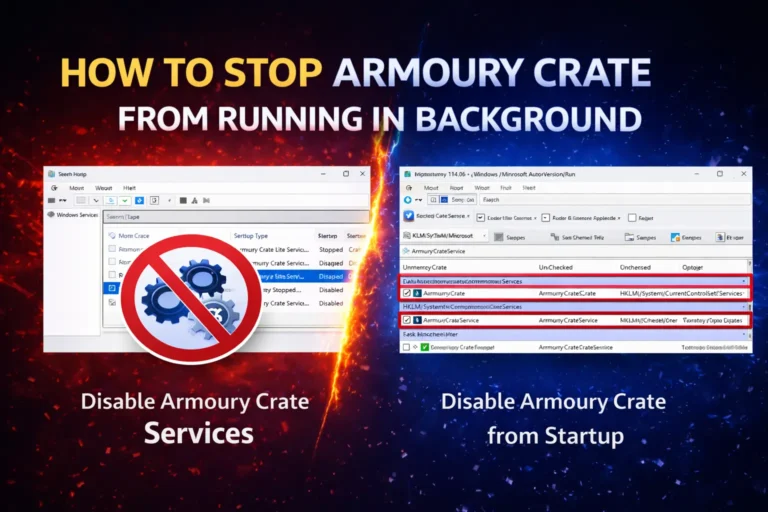
- Disable unneeded Armoury Crate startup services
- Turn off unused RGB and Aura Sync effects
- Use Performance or Turbo mode while gaming
- Pause background updates during gameplay
- Keep GPU drivers updated from official sources
Is Armoury Crate Bad for Gaming Performance?
Armoury Crate does not inherently reduce FPS. Most issues come from background services, RGB effects, and incorrect power modes especially on laptops. With proper settings, it can even improve stability by managing thermals and performance states correctly.
Conclusion
Armoury Crate is not inherently harmful to gaming performance, but its impact depends on how efficiently it’s used. When treated as a system management tool rather than a background-heavy utility, it can coexist with smooth gameplay. Understanding your hardware limits and using Armoury Crate only for what you actually need is the key to avoiding unnecessary performance issues on ASUS systems.
FAQs
Can Armoury Crate cause input lag even if FPS looks fine?
Yes. Background services can affect frame-time consistency, which may feel like input lag despite stable FPS.
Does Armoury Crate affect online or competitive games more?
Competitive games are more sensitive to frame-time spikes, so any background activity may feel more noticeable.
Is Armoury Crate required after a fresh Windows install?
No. It’s optional, but useful if you want ASUS-specific controls like fan tuning and performance modes.
Can Windows updates conflict with Armoury Crate performance?
Occasionally. Major Windows updates may reset power settings or services, which can affect performance until reconfigured.