
Quick Answer:
Armoury Crate uses high CPU or RAM mainly due to always-running ASUS services and RGB processes. Disabling unnecessary startup services, turning off RGB effects, and limiting background updates usually fixes the issue without uninstalling the software.
Armoury Crate may use high CPU or RAM when several background services run at the same time.
Features like RGB lighting, device synchronization, and automatic update checks increase system load. This guide shows clear and practical steps to reduce resource usage in 2026.
What Is Normal CPU and RAM Usage for Armoury Crate?
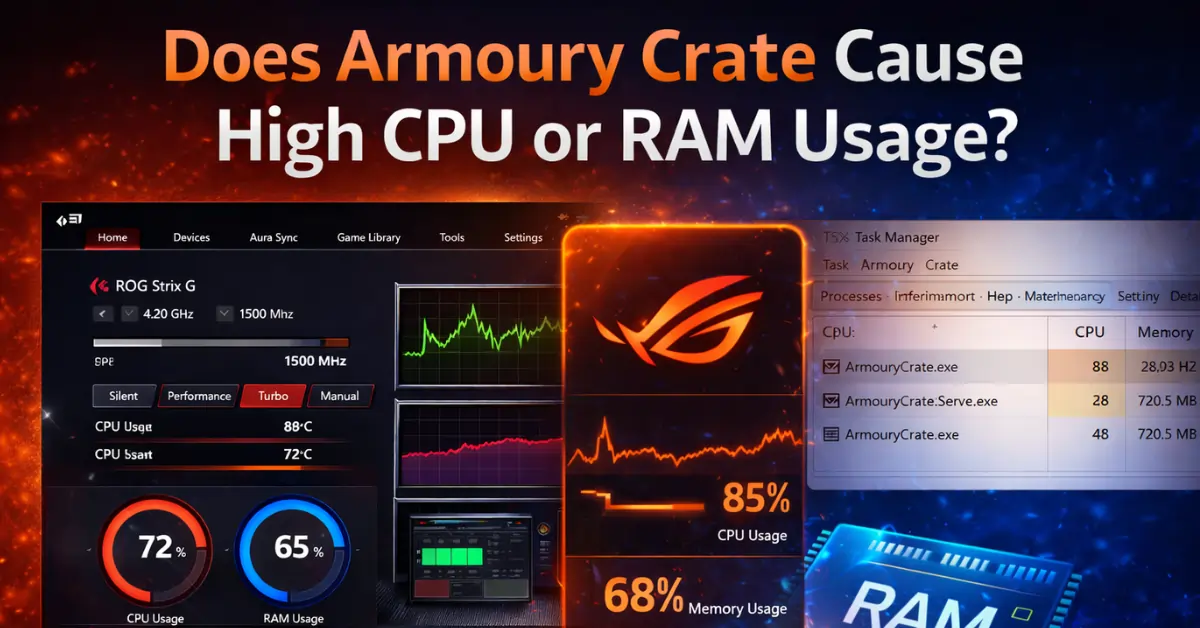
Armoury Crate usually uses around 150 to 300 MB of RAM when it is idle. CPU usage normally stays below 3% when the app is running in the background. This level of usage is considered normal and does not affect performance. It becomes a problem when RAM goes above 500 MB or CPU usage stays high even when the app is not open.
Why Armoury Crate Uses High CPU or RAM?
Armoury Crate can consume high CPU or RAM because several system services run continuously in the background. Features like RGB lighting, device syncing, update checks, and Windows startup conflicts increase resource usage over time.

Background Services Running All the Time
Armoury Crate installs several background services that start automatically with Windows.
These services stay active to control hardware features, apply profiles, and keep devices synchronized, which increases resource usage.
Aura Sync and RGB Effects
RGB lighting effects run continuously to refresh animations and color changes.
When multiple RGB devices are connected, these effects can noticeably increase CPU and memory usage.
Connected ASUS Devices
Every connected ASUS device such as a keyboard, mouse, or headset adds extra system load.
Armoury Crate constantly checks device status, firmware, and synchronization, which raises CPU and RAM consumption.
Automatic Driver and Update Checks
Armoury Crate regularly scans for driver and firmware updates in the background.
These silent checks can cause sudden spikes in CPU and memory usage, even when the app is not open.
Windows Fast Startup Conflicts
Windows Fast Startup does not fully reset services during shutdown.
This can cause Armoury Crate to repeatedly retry hardware initialization, leading to higher CPU and RAM usage.
You can download Armourycrate safely from Asusarmourycrate.com.
How to Check Armoury Crate CPU and RAM Usage?
You can easily check Armoury Crate’s CPU and RAM usage using Windows Task Manager.
This helps confirm whether the software is causing high system resource consumption.
Open Task Manager and look for these processes:
If these processes show consistently high CPU or RAM usage, it confirms the issue.
How to Fix High CPU or RAM Usage (Step-by-Step)?
You can reduce Armoury Crate’s CPU and RAM usage by adjusting a few system and software settings.
Follow these steps in order, starting with basic fixes and moving to advanced solutions if needed.
1. Restart Armoury Crate Services
End all Armoury Crate–related processes from Task Manager to stop stuck services.
Restart your system and open Armoury Crate once to allow services to reload cleanly.
2. Disable Unnecessary Startup Services
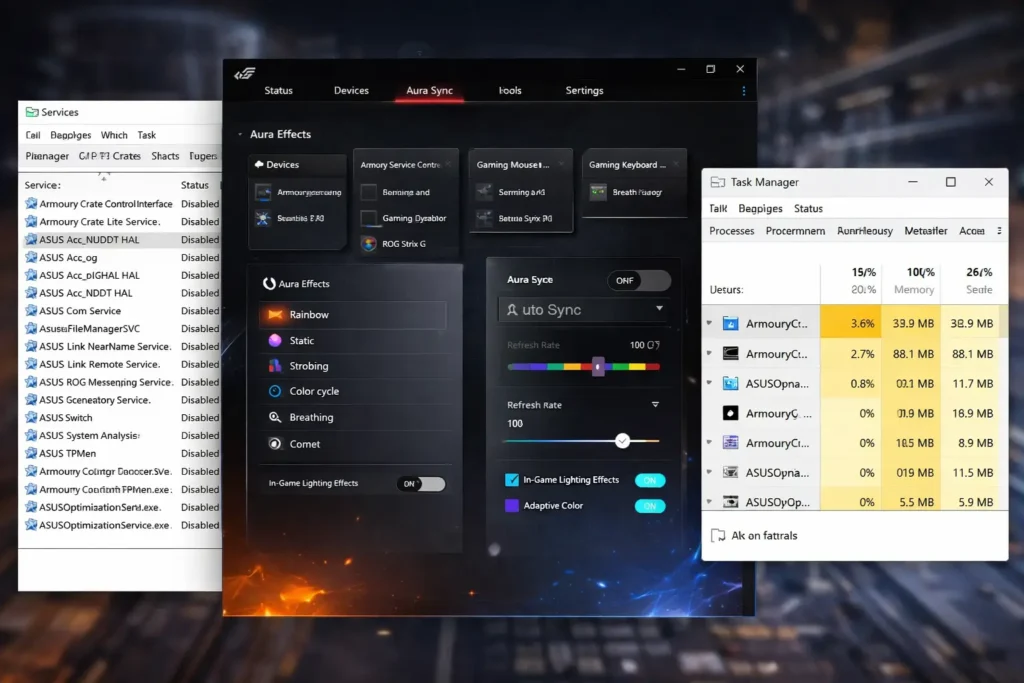
Open Task Manager → Startup and review ASUS-related entries carefully.
Disable services you do not use daily to prevent Armoury Crate from running heavy tasks at boot.
3. Turn Off Aura Sync RGB Effects
Disable animated RGB effects or switch to static lighting inside Armoury Crate.
This significantly reduces CPU usage, especially when multiple RGB devices are connected.
4. Disable Background Auto-Updates
Turn off automatic update checks within Armoury Crate settings.
Manually checking for updates prevents random CPU and RAM spikes in the background.
5. Disable Windows Fast Startup
Go to Power Options → Choose what the power buttons do and turn off Fast Startup.
This ensures Armoury Crate services reset properly instead of looping after shutdown.
Also Read: Armoury Crate Not Detecting GPU/Graphics Card
What are Advanced Fixes for Persistent Issues?
If basic fixes do not resolve the problem, advanced steps may be required. These solutions target driver conflicts and corrupted installations.
Reinstall ASUS System Control Interface
Corrupted or outdated drivers can cause repeated background retries.
Reinstalling this driver often restores normal CPU and RAM behavior.
Clean Reinstall Armoury Crate
If resource usage remains high, perform a full uninstall of Armoury Crate.
A clean reinstallation removes corrupted files and broken background services.
Limit Armoury Crate Startup Behavior
Prevent Armoury Crate from launching automatically with Windows.
Open it only when you need to change performance, fan, or lighting settings.
Does High CPU or RAM Usage Affect Gaming or Battery Life?
Yes, high CPU or RAM usage from Armoury Crate can reduce FPS stability during gaming, especially on mid-range or older laptops.
It also increases battery drain because background services keep running even when the system is idle.
For a deeper breakdown, Read Does Armoury Crate Affect Gaming Performance or Battery Life?
Should You Disable or Remove Armoury Crate?
You should disable Armoury Crate background services if you only need basic system control and occasional adjustments.
If your goal is maximum performance, faster boot times, and improved battery life, uninstalling the software may be a better option.
Armoury Crate vs G-Helper for Performance Efficiency
Many users switch to G-Helper to reduce system load and background resource usage.
G-Helper consumes far less RAM and runs without continuous background services, making it a popular alternative for performance-focused users. A detailed comparison is available in Armoury Crate vs G-Helper: Best For ASUS Laptop?
Conclusion
High CPU or RAM usage in Armoury Crate is mainly caused by background services, RGB effects, and automatic syncing. The software is useful but not optimized for every system, especially performance-focused laptops.
Most issues can be fixed by disabling unnecessary services and limiting background features.
Users who need full ASUS control may keep Armoury Crate with optimizations.
Others can reduce usage or replace it for better performance and battery life in 2025.
If Armoury Crate is not opening or behaving unpredictably along with high CPU or RAM usage, the issue is often related to a deeper app malfunction that needs proper fixing.
Frequently Asked Questions
Does Armoury Crate slow down Windows startup?
Yes, Armoury Crate can slow startup because several ASUS services load during boot, especially on systems with limited RAM.
Is it safe to stop Armoury Crate services from Task Manager?
Stopping services temporarily is safe, but disabling critical drivers permanently can affect hardware features like fan control.
Why does Armoury Crate reopen after I close it?
Background services continue running even when the main app is closed, which can cause the software to relaunch automatically.
Does updating Armoury Crate fix performance issues?
In some cases, yes. Updates often fix bugs and service conflicts, but they can also introduce new background processes.
Is Armoury Crate necessary for gaming laptops?
Armoury Crate is not mandatory for gaming, but it provides easier access to performance modes and ASUS-specific features.
Does Armoury Crate use more resources on laptops than desktops?
Yes, laptops often experience higher impact due to power management, battery monitoring, and thermal controls.