
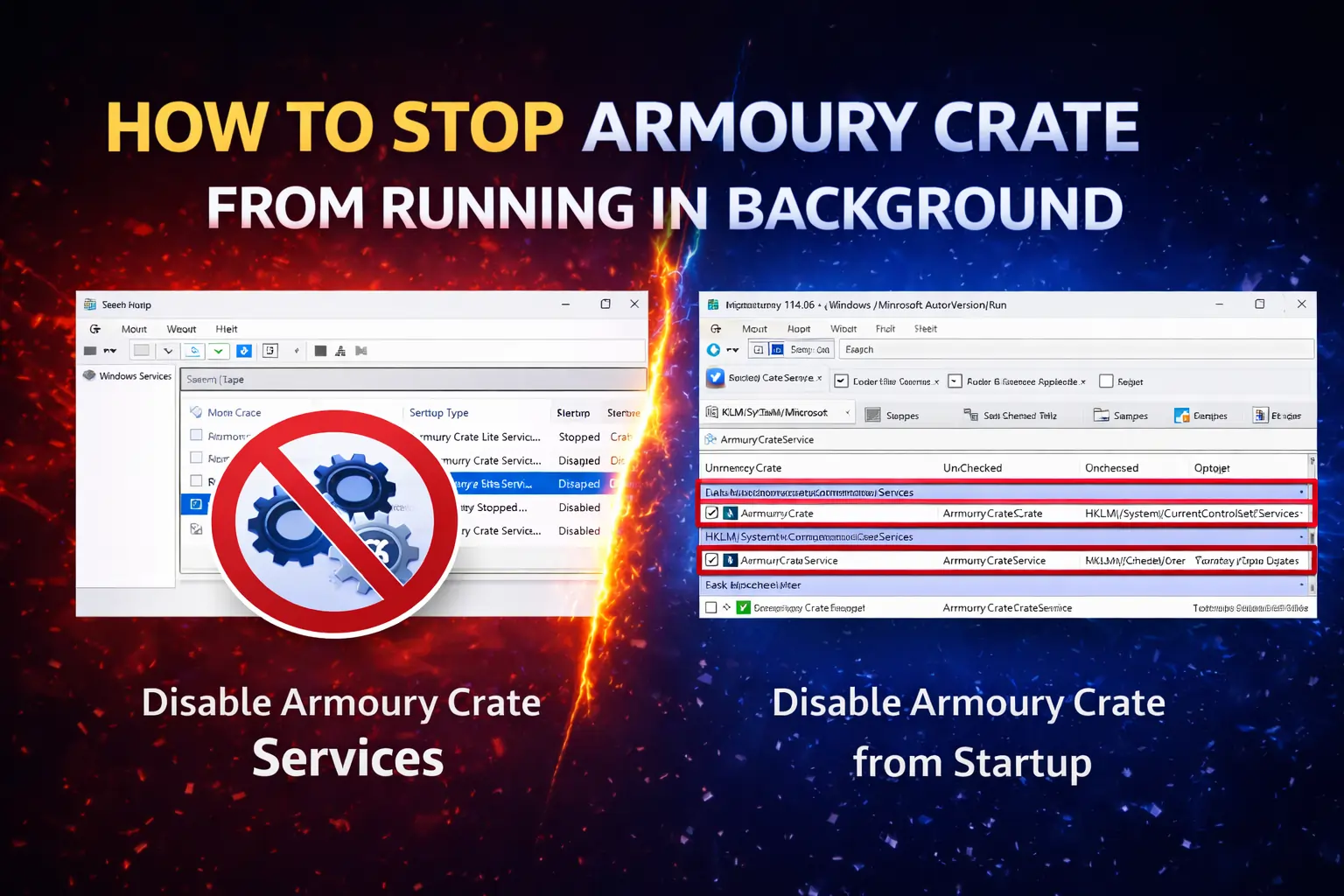
Quick Answer:
You can stop Armoury Crate from running in the background by disabling its startup apps, background services, and scheduled tasks, which reduces RAM usage, improves boot time, and extends battery life without affecting core system functions.
Why Does Armoury Crate Run in the Background?
Asus Armoury Crate runs in the background to automatically manage performance profiles, temperatures, RGB lighting, and driver updates. ASUS designed these services to keep hardware features active without requiring users to open the app manually.
The software launches multiple services at Windows startup, including performance, RGB, and update-related processes. These services consume system memory and power continuously, which can lead to slower boot times and reduced battery life.
Is Background Running Necessary for All Users?
Armoury Crate does not need to run continuously if you rarely use RGB lighting, automatic profiles, or peripheral features. Users who only want manual control can safely disable background services without affecting core laptop functionality.
Method One: Disable Armoury Crate in Task Manager Startup
This method stops Armoury Crate from launching automatically when Windows boots.
It helps reduce startup time and prevents the software from using system resources immediately after login.
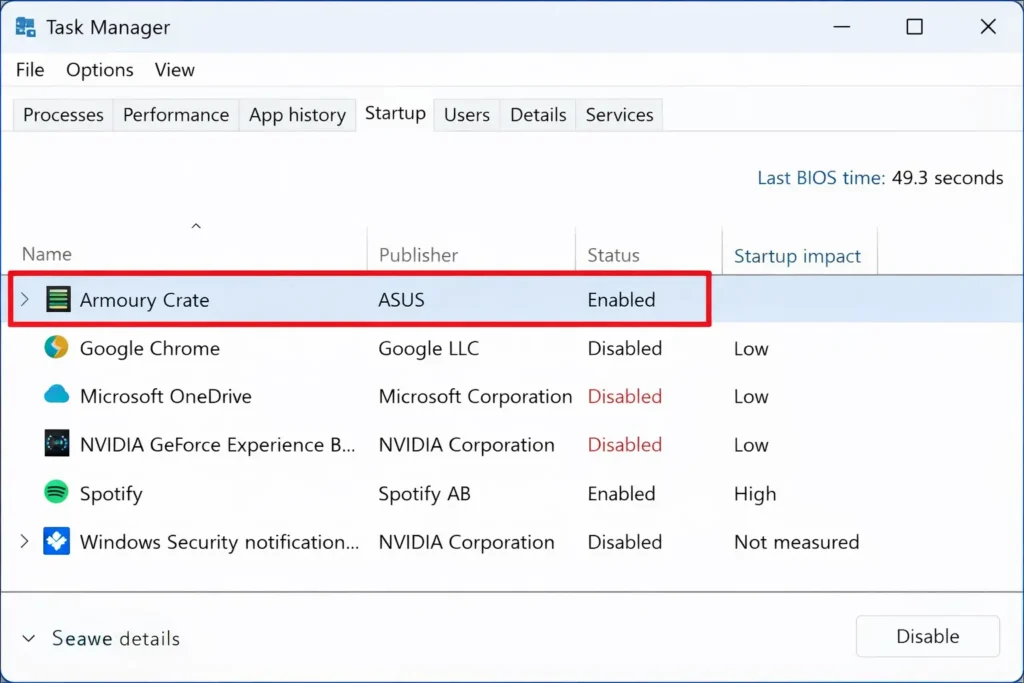
Open Task Manager
Open Task Manager by pressing Ctrl + Shift + Esc or by right-clicking the taskbar and selecting Task Manager. Once opened, navigate to the Startup tab to see all applications configured to run when Windows starts.
Disable Armoury Crate Startup Entries
Carefully look for entries related to Armoury Crate or ASUS services in the startup list. Select each related entry and click Disable so Windows no longer launches them automatically.
Verify Startup Changes
Restart your computer to confirm the changes were applied correctly.
After reboot, check Task Manager again to ensure Armoury Crate does not start on its own.
Also Read: Armoury Crate Stuck on Loading Screen solution
Method Two: End Active Armoury Crate Processes
This method immediately stops Armoury Crate if it is currently running in the background.
It frees system memory instantly but does not prevent the software from restarting later.
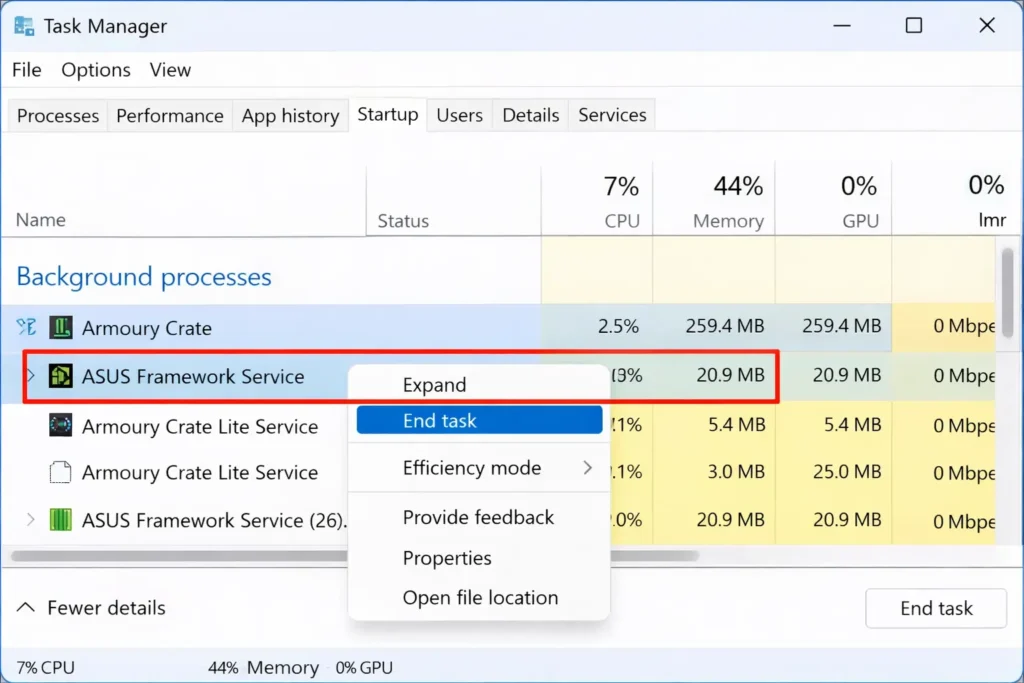
Access Running Processes
Open Task Manager and switch to the Processes tab to view active programs.
Scroll through the list to find processes related to Armoury Crate, ASUS, or ROG.
End Armoury Crate Processes
Right-click each Armoury Crate-related process and choose End Task.
Repeat this step until all Armoury Crate processes are closed.
Understand Process Restart Behavior
Some processes may restart automatically due to background services.
If this happens, additional steps are required to fully stop Armoury Crate.
Method Three: Turn Off Auto-Start in Armoury Crate Settings
This method disables background behavior directly from Armoury Crate’s own settings.
It provides a cleaner approach compared to force-stopping processes.
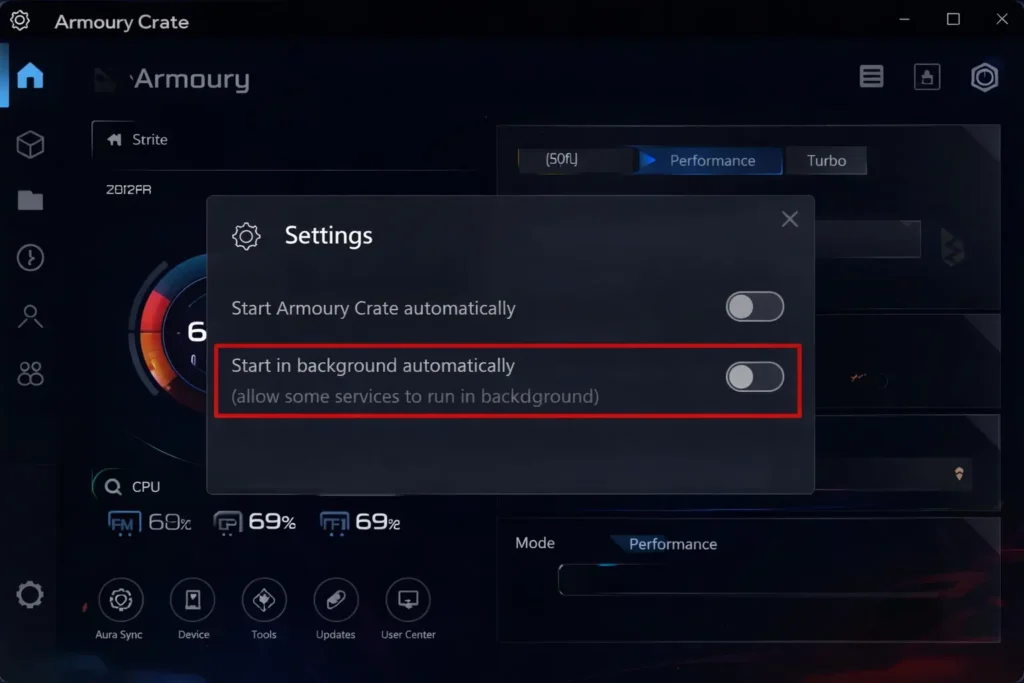
Launch Armoury Crate
Search for Armoury Crate from the Windows Start menu and open the application.
If the app does not launch, move on to the service-based method.
Open the Settings Menu
Click the Settings or gear icon inside the Armoury Crate interface.
Browse through the general or preferences section to locate startup-related options.
Disable Background Features
Turn off options such as Start with Windows, Run in Background, or Automatic Updates.
Disable any background features you do not actively use to reduce resource consumption.
Save Changes and Exit
Apply the settings and fully close Armoury Crate.
Open Task Manager to confirm no background processes remain active.
Also Read: How to Set Up Custom Fan Curves in Armoury Crate
Method Four: Disable Armoury Crate Services (Most Effective)
This method completely stops Armoury Crate from running in the background.
It is the most reliable option for users who want maximum system performance.
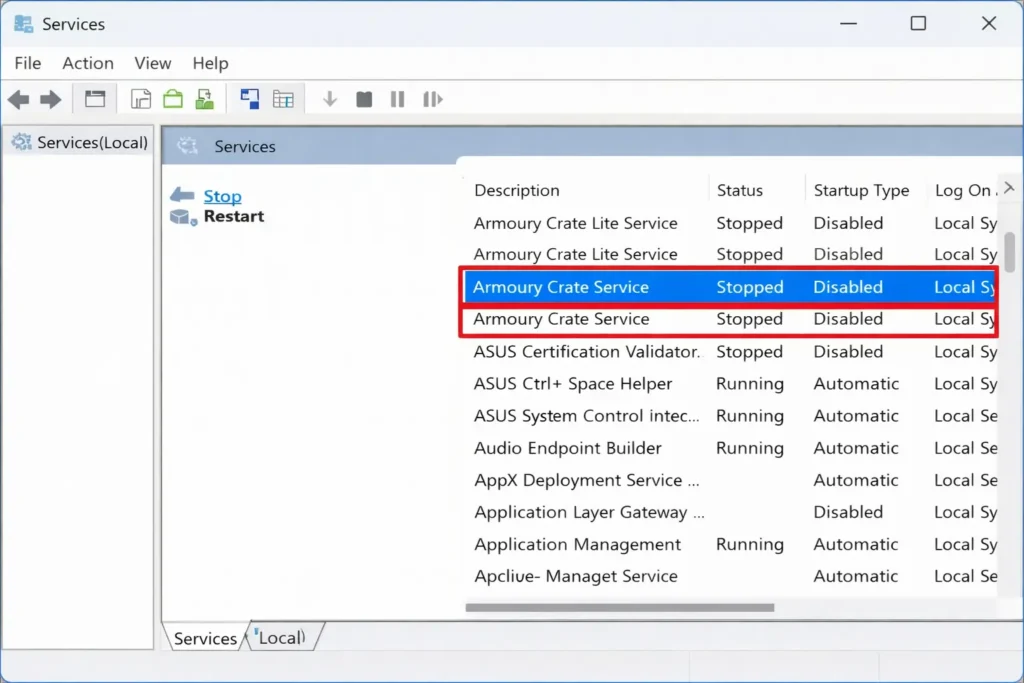
Open Windows Services Manager
Press Windows + R, type services.msc, and press Enter to open Services Manager.
This panel lists all background services running on your system.
Identify Armoury Crate Services
Look for services related to Armoury Crate and ASUS, such as Aura Service or ASUS Optimization Service.
Use the description column to confirm which services belong to Armoury Crate.
Stop and Disable Services
Open the properties of each Armoury Crate service and click Stop.
Set the startup type to Disabled to prevent the service from running again.
Disable All Related Services Carefully
Repeat the process for every Armoury Crate-related service you find.
Be cautious not to disable essential system or driver-related services.
Important Safety Note
Avoid disabling services related to audio, display, networking, or system drivers.
When unsure, research the service name before making changes.
Best Practice Recommendation
For the best results, combine startup disabling with service-level disabling. This ensures Armoury Crate stays completely inactive unless you choose to run it manually. Aftter that whenever you want you can Download Armoury crate again.
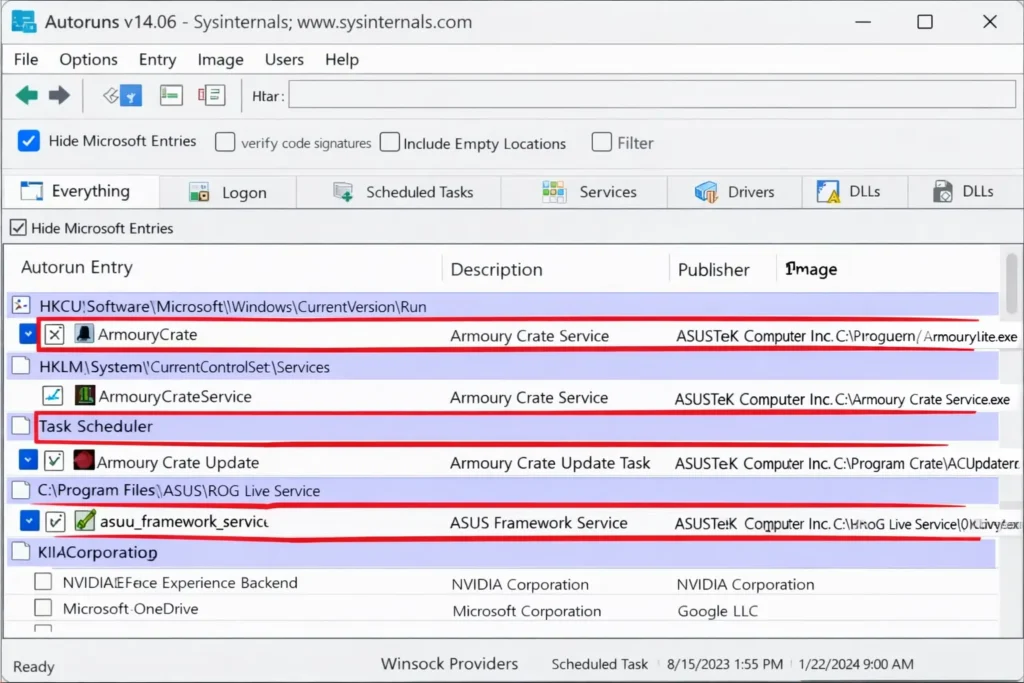
What are the Advanced Tools for Complete Control?
Power users who want permanent control over Armoury Crate can use advanced Windows tools.
These tools prevent Armoury Crate from restarting itself through hidden startup points.
What Happens After Stopping Armoury Crate Background Services?
Stopping Armoury Crate background services improves performance but removes some features.
Understanding both sides helps you decide how much control you want.
Performance Improvements
Disabling Armoury Crate frees system memory and reduces CPU usage.
Users often notice faster boot times, smoother multitasking, and better battery life on laptops.
Systems with limited RAM benefit the most from stopping background services.
Gaming performance can also feel more stable due to reduced background load.
Features You Lose
RGB lighting control stops working when Armoury Crate services are disabled.
Custom fan curves and automatic performance mode switching no longer apply.
Game-based scenario profiles and live hardware overlays also stop functioning.
Core system operation remains normal, but advanced ASUS features require Armoury Crate running. One specific task that often persists at startup is AsusBackupWMI here is how to disable AsusBackupWMI
Can You Re-Enable Armoury Crate Features Later?
Yes, Armoury Crate features can be re-enabled at any time.
You can manually start the application, adjust settings, and close it again.
Changes like RGB colors or fan curves remain active until the next restart.
This allows users to balance performance and functionality without keeping services running constantly.
Best Alternatives to Armoury Crate
Users who disable Armoury Crate can still control hardware using lighter alternatives.
These tools offer essential features with lower system impact.
G-Helper (Lightweight Alternative)
G-Helper provides performance modes, fan control, and temperature monitoring without background services. It uses minimal system resources and runs only when opened.
This tool is ideal for users who want speed, simplicity, and privacy.It works best on supported ASUS laptops and does not require installation For a full breakdown of how it compares to the official ASUS software, see our detailed guide on Armoury Crate vs G-Helper: Best For ASUS Laptop.
Other Monitoring Tools
HWiNFO offers detailed temperature and hardware monitoring with very low resource usage.
MSI Afterburner provides fan control and on-screen monitoring, mainly for GPUs.
These tools replace monitoring features but do not manage ASUS-specific performance profiles.
They are useful when you only need visibility, not full system control.
Why Does Armoury Crate Show as “Suspended” in Task Manager?
When you see Armoury Crate marked as “Suspended” in Task Manager, it’s usually normal Windows behavior, not a fault. Windows automatically suspends apps that are not actively being used to save CPU power, reduce memory usage, and improve battery life especially on laptops.
This suspended state simply means Armoury Crate’s interface is idle. Its core background services can still wake up instantly when needed, such as when you switch performance modes, adjust fan settings, or connect supported hardware. Nothing is broken, and you don’t need to restart or reinstall anything.
Armoury Crate being suspended is only a concern if you notice high CPU/RAM usage, overheating, or FPS drops while it’s supposedly inactive. In that case, the issue is usually related to background services or misconfiguration not the suspended status itself.
When You Should Keep Armoury Crate Enabled?
Keep Armoury Crate enabled if you rely on RGB lighting across multiple ASUS devices.
It is also necessary for automatic performance profiles and advanced fan curve tuning.
Users who want official updates, full hardware compatibility, and peripheral support benefit most.
In these cases, selective optimization is better than full disabling. And if your Armoury carte stop working its also a mess.
Troubleshooting Common Problems
Problems can occur when stopping Armoury Crate from running in the background.
These common issues explain why changes sometimes do not apply correctly.
Services Restart Automatically
Some Armoury Crate services restart because scheduled tasks or other ASUS services trigger them.
Disable all ASUS-related tasks in Task Scheduler and avoid third-party optimization tools that re-enable services automatically.
Settings Reset After Restart
Windows Fast Startup can prevent service changes from saving correctly because it partially hibernates the system.
Disable Fast Startup from Power Options and restart your computer to apply Armoury Crate changes permanently.
Performance Feels Lower Than Expected
Gaming or system performance may drop if Armoury Crate performance profiles are no longer active.
Switch to a high-performance Windows power plan or re-enable ASUS Framework Service if basic hardware controls stop working.
Conclusion
Stopping Armoury Crate from running in the background helps reduce RAM usage, improve boot speed, and extend battery life—especially on laptops. By disabling startup entries, background services, and auto-start settings, you regain control without breaking core system functions. If you only need Armoury Crate occasionally, you can launch it manually when required. Users who prefer a lighter setup can switch to alternatives like G-Helper, while those who never plan to use Armoury Crate again can remove it completely using the official uninstall tool. Choose the approach that balances performance and features based on your actual usage.
Frequently Asked Questions
Does stopping Armoury Crate affect Windows updates?
No, disabling Armoury Crate does not interfere with Windows updates or system security patches.
Can Armoury Crate reinstall itself after Windows updates?
Yes, on some ASUS systems it may reinstall if the BIOS auto-install option is enabled.
Is it safe to disable ASUS services permanently?
It is safe to disable Armoury Crate-related services, but system-critical driver services should remain enabled.
Will my laptop overheat without Armoury Crate running?
No, default BIOS cooling controls continue to manage temperatures even without Armoury Crate.
Can I enable Armoury Crate only for gaming sessions?
Yes, you can manually start Armoury Crate before gaming and close it afterward to avoid constant background usage.
How Do I Fully Uninstall Armoury Crate Safely?
ASUS provides an official uninstall tool that removes all Armoury Crate components safely.
After running the tool and restarting your system, Armoury Crate will no longer run or reinstall automatically.
Can Armoury Crate Be Completely Removed?
Users who never plan to use Armoury Crate again can remove it completely.
This frees storage space and prevents all background activity from running.
Why Can’t I Access or Disable Armoury Crate BIOS Features?
Some ASUS systems automatically reinstall Armoury Crate through BIOS settings. Disable options like Armoury Crate Download & Install inside the BIOS to prevent automatic reinstallation.
Why is Armoury Crate suspended in Task Manager?
Windows automatically suspends background apps to save CPU and battery. Armoury Crate being suspended is normal and does not indicate a problem unless performance issues occur.